 Eleanora R.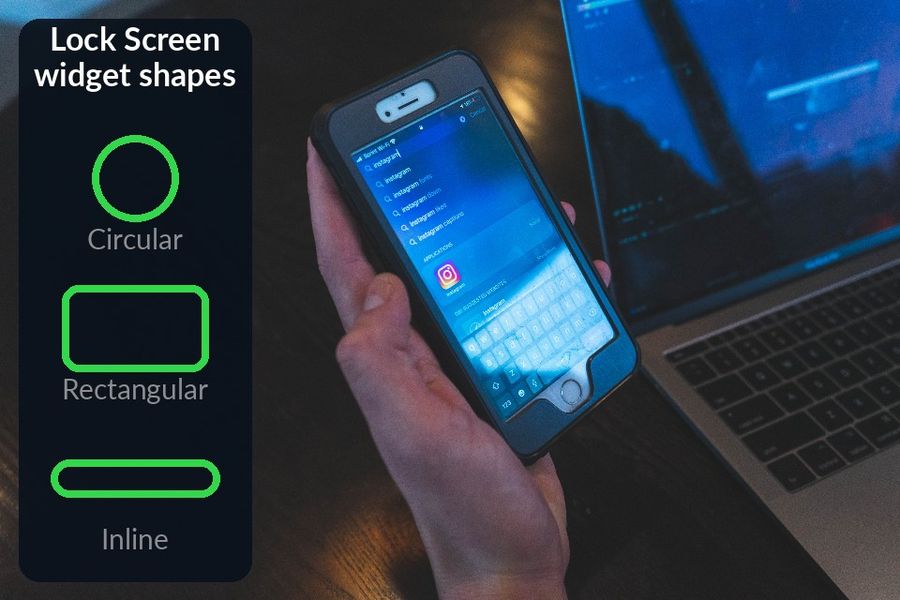
Adding a vocabulary widget to your iPhone Lock Screen takes about a minute: place it from the widget picker Apple already built into iOS, in a shape called circular, rectangular or inline, and a word from this app's packs — or your own words — starts showing every time you check the time. This guide walks through that setup, using the same widget picker Apple describes on its own iPhone widgets support page, plus a few settings worth knowing once the widget is placed.
Key takeaways
- To add the widget: touch and hold the Lock Screen, tap Customize, Add Widgets, then choose Words & Translations or Words Only in Circular, Rectangular or Inline.
- Turn on at least one word pack first so the widget has something to show; Edit Widget controls Show Answer, the mascot and which language appears.
- If a word seems stuck, Apple throttles refreshes: raise the refresh rate in the app's Settings or remove and re-add the widget. No Apple Watch is needed.
Why the Lock Screen works for vocabulary
You unlock your iPhone throughout the day for reasons that have nothing to do with learning a language: to check the time, read a message, glance at the weather. A widget sits in that same moment without asking for a separate one. Watch Your Language uses this for spaced repetition — it schedules which word to show next from the ones you keep forgetting, and lets you choose how often it changes, from every minute to once a week — so the glance that was already going to happen becomes the review, rather than a new one you have to remember to start.
This only covers the passive half of learning a language: seeing a word often enough that it stays with you. It will not teach you grammar or get you through a spoken conversation, which is worth knowing before building a routine around it — passive exposure and active study solve different problems, and most learners end up needing both.
Setting up a widget on your iPhone Lock Screen
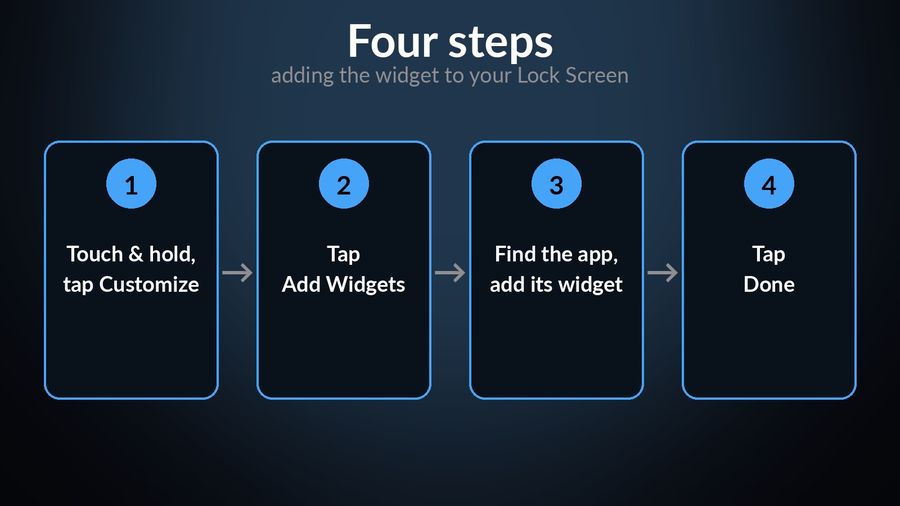
Before adding the widget, open the app and turn on at least one word pack from the Word Packs tab — or add your own words with Premium — so there is something for the widget to show. Then add the widget itself, following the same steps Apple gives for any Lock Screen widget in its guide to adding and editing widgets on iPhone:
- Touch and hold the Lock Screen until the Customize button appears, then tap Customize.
- Tap Add Widgets.
- Find Watch Your Language in the widget list, then tap or drag either the Words & Translations widget or the Words Only widget onto the Lock Screen.
- Swipe down from the widget list, then tap Done.
Apple's same support page notes that the Lock Screen has room for a small stack of widgets below the date, plus one line of inline text above the time, and that you can remove an existing widget to make space for a new one if it is full. Either of the app's widgets fits any of those spots: a small circle next to the clock, a wider rectangle with more room for a word, or a single line of inline text above the time. Nothing stops you placing both the Words & Translations widget and the Words Only widget together, one for a quick check and one to quiz yourself against.
Without an Apple Watch, the same two widgets also work on the Home Screen, and on an iPad's Home Screen, so the whole habit still runs from the phone or tablet alone. A watch is not a requirement here — it adds a complication on the watch face and a small practice app, but the Lock Screen widget works the same way with or without one.
Choosing what the widget shows
The Words & Translations widget shows a word with its translation by default; the Words Only widget starts with the translation hidden, closer to testing yourself. Long-press either one once it is placed and tap Edit Widget to reach its settings: Show Answer reveals the translation immediately or keeps it hidden until you tap the widget, Show Mascot adds or removes the small character in the corner, and Show words in switches between the language you already speak, the language you are studying, or both.
Words come from themed packs graded by CEFR level, A1 to C2, with more than 10,000 words across the app's 25+ learning languages, so there is usually a pack close to what you are learning without adding anything yourself. If nothing fits, Premium adds custom words: typed in directly, imported from a spreadsheet, or scanned from handwritten notes with the camera.
Keeping the widget useful
Apple controls how often a Lock Screen widget refreshes, to protect battery life, and this app's own Settings let you raise that refresh rate if a word is changing more slowly than you would like. A few other things are worth checking if the widget is not behaving:
- Nothing shows in the widget: open the app and confirm at least one word pack is turned on in the Word Packs tab. An empty widget usually just means an empty list.
- The word has not changed in hours: that is Apple's refresh throttling rather than a fault; raising the refresh rate in Settings helps, and removing and re-adding the widget from the Customize screen resets it if it still looks stuck.
- It is showing the wrong language: after switching the app's language, the widget can take a couple of hours to catch up; if it has not by then, remove it and add it again.
A Lock Screen widget is one part of a wider set of tools built around the same word list: a Home Screen widget for the moments you unlock rather than glance, an iPad widget, and, for anyone with an Apple Watch, complications on the watch face itself. Other language apps offer iPhone widgets too, though few schedule what they show by how well you already know it, rather than on a fixed timer.
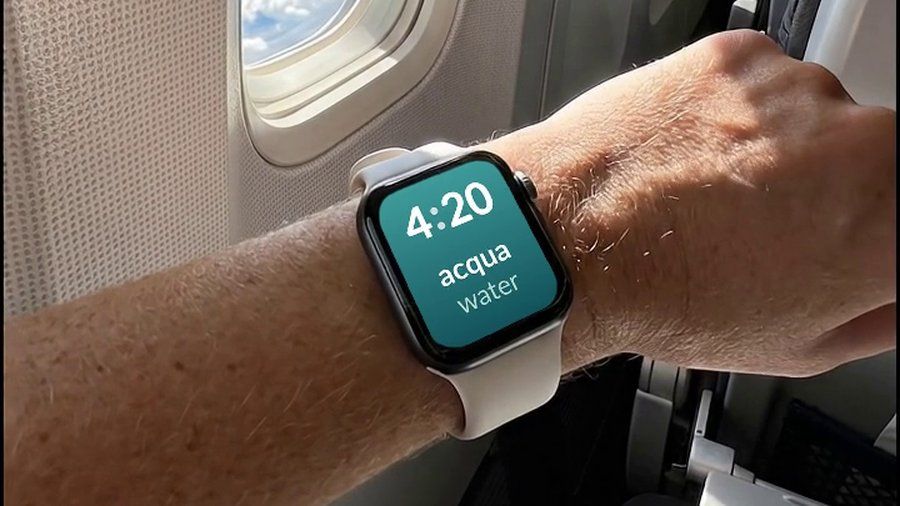
Watch Your Language shows a vocabulary word in the circular, rectangular or inline widget you add to your Lock Screen, drawn from packs across 25+ languages — more than 10,000 words in total — or from words you add yourself, and brought back more often by spaced repetition when you keep forgetting one. The same schedule reaches a Home Screen widget, an iPad widget, and, for anyone wearing one, an Apple Watch complication.