 Eleanora R.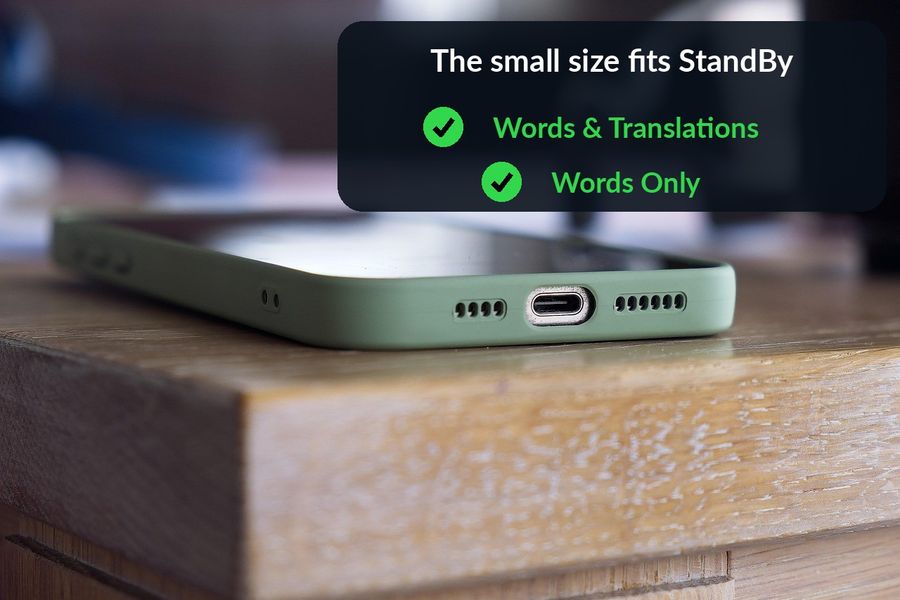
StandBy is the screen an iPhone shows when it is charging, lying on its side, and locked — and one of the things it can show there is a widget. Watch Your Language's two Home Screen widgets, Words & Translations and Words Only, are both built at the small size, which is the one size Apple's own widget design guidelines list as supported in StandBy, so either one can sit on a nightstand or a desk charger and keep showing a word from a distance.
Key takeaways
- StandBy shows widgets while an iPhone charges on its side; the app's small Words & Translations and Words Only widgets both work there.
- Setup: turn on StandBy in Settings, enable a word pack in the app, charge the phone on its side, press the side button and swipe to widgets.
- A new word may not appear instantly because Apple controls widget refreshes. No Apple Watch is needed, but a glance builds recognition only.
What StandBy actually is
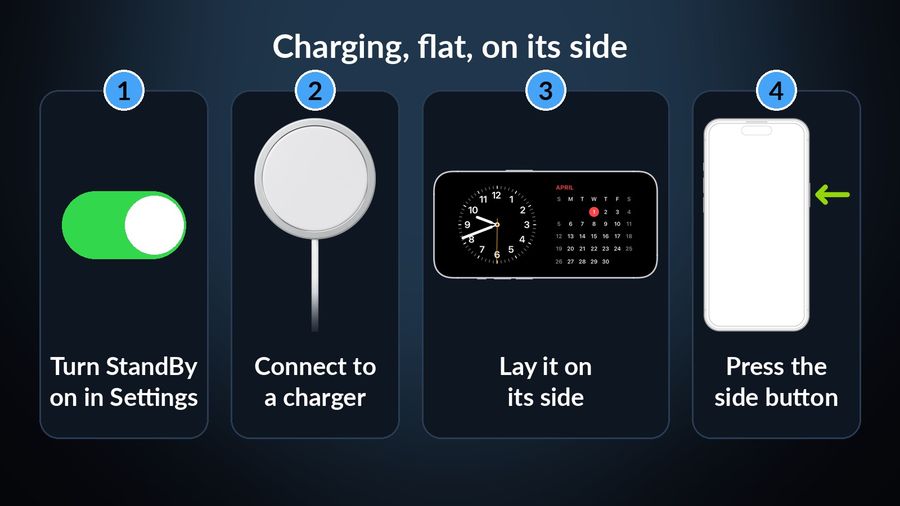
StandBy arrived with iOS 17, and Apple's own support page for it describes the setup in four steps: turn StandBy on in Settings, connect the iPhone to a charger, lay it on its side and keep it stationary, then press the side button. From there you swipe left or right to move between clocks, photos and widgets, and swipe up or down within whichever one you land on. Unplug the phone or pick it up and StandBy ends; it only runs while the phone is charging and lying flat on its side.
On iPhone models with an Always-On display, the screen simply stays lit. On every other iPhone that supports iOS 17 or later, the screen goes dark to save power and comes back with a tap on the screen, a gentle nudge to the table it is resting on, or a word to Siri.
Why a bedside or desk display suits vocabulary
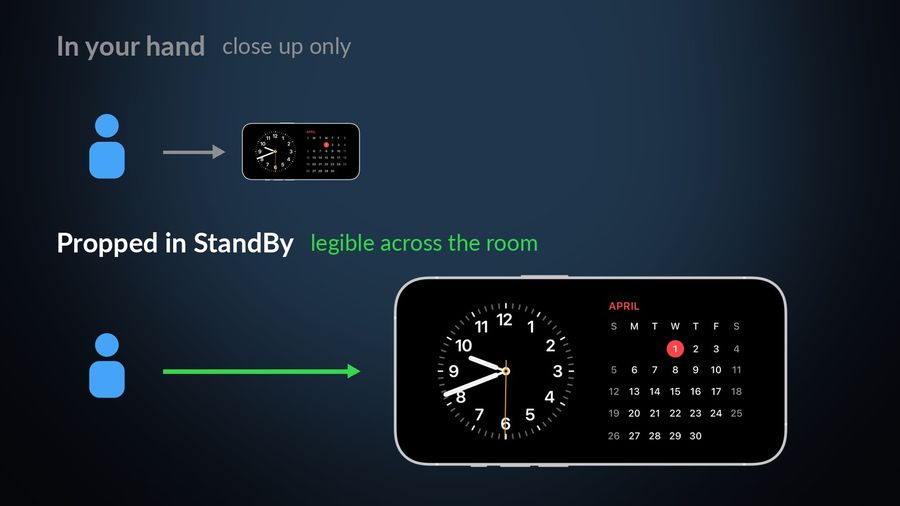
A phone that is already charging overnight, or sitting propped up next to a keyboard during the day, is a phone you are going to look at anyway — to check the time, see the weather, glance at the date. Watch Your Language's widgets use that same moment for spaced repetition: the app schedules which word to show next from the ones you keep forgetting, and you choose how often it changes, from every minute to once a week. Propped up in StandBy, that word is legible from across a room rather than only when the phone is in your hand, which is closer to how the same widget already works on the Lock Screen — StandBy just scales the same small widget up and gives it a stretch of time when you are near the phone but not holding it.
It is worth being honest about what this covers. A widget you glance at is a passive-vocabulary tool: it builds recognition of words over repeated, low-effort contact, which is genuinely useful and also not the whole job of learning a language. It will not teach grammar or get you through a conversation — those need active practice alongside it, not instead of it.
Setting up StandBy with the app's widget
- Open Settings, tap StandBy, and make sure the StandBy toggle is on.
- Open Watch Your Language and turn on at least one word pack from the Word Packs tab, so there is a word ready for the widget to show.
- Connect the iPhone to a charger — cable or MagSafe both work — and lay it on its side somewhere stationary: a nightstand, a desk stand, a kitchen counter.
- Press the side button, then swipe left or right until you reach the widgets view.
- If Watch Your Language is not already part of the stack you land on, touch and hold the widgets screen to edit it, the same way you edit a widget stack anywhere else on the iPhone, and add the Words & Translations widget or the Words Only widget.
Apple's StandBy page also notes that each place you charge with MagSafe keeps its own preferred view — a clock at the bedside, a photo frame in the kitchen — so a desk charger can be set to the vocabulary widget while a bedside one shows a plain clock, or the other way round, without the two competing for the same spot.
A few things worth knowing
- The word will not change instantly. Apple controls how often any widget refreshes, to protect battery life, and the app's own Settings let you raise that rate if a word is changing more slowly than you would like.
- Night Mode changes how it looks, not what it says. When the room is dark, StandBy switches to a dim, monochrome red display so the light is not intrusive at night — Apple's design guidelines describe the same shift for widgets shown in StandBy's low-light mode. The word itself does not change, only the colour.
- It needs power and stillness. StandBy is tied to charging and to the phone staying still on its side; pick it up and it steps aside for the regular Lock Screen.
- You do not need an Apple Watch for any of this. StandBy, the Home Screen and the Lock Screen all run from the phone alone. A watch adds a complication on the watch face on top, but the widget side of the app works the same with or without one.
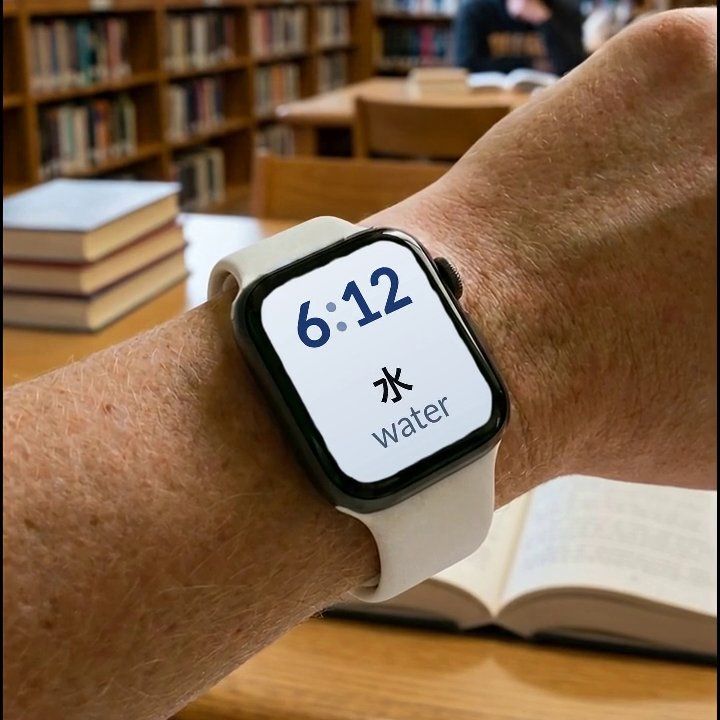
Watch Your Language puts a vocabulary word, drawn from packs across 25+ languages and more than 10,000 words, on a small Words & Translations or Words Only widget you can prop up in StandBy at your bedside or desk charger, decided by spaced repetition from the words you keep forgetting. The same word follows you to the Lock Screen, the Home Screen and, if you wear one, an Apple Watch complication — and with Premium you can point the whole schedule at words you added yourself.