 Paul L.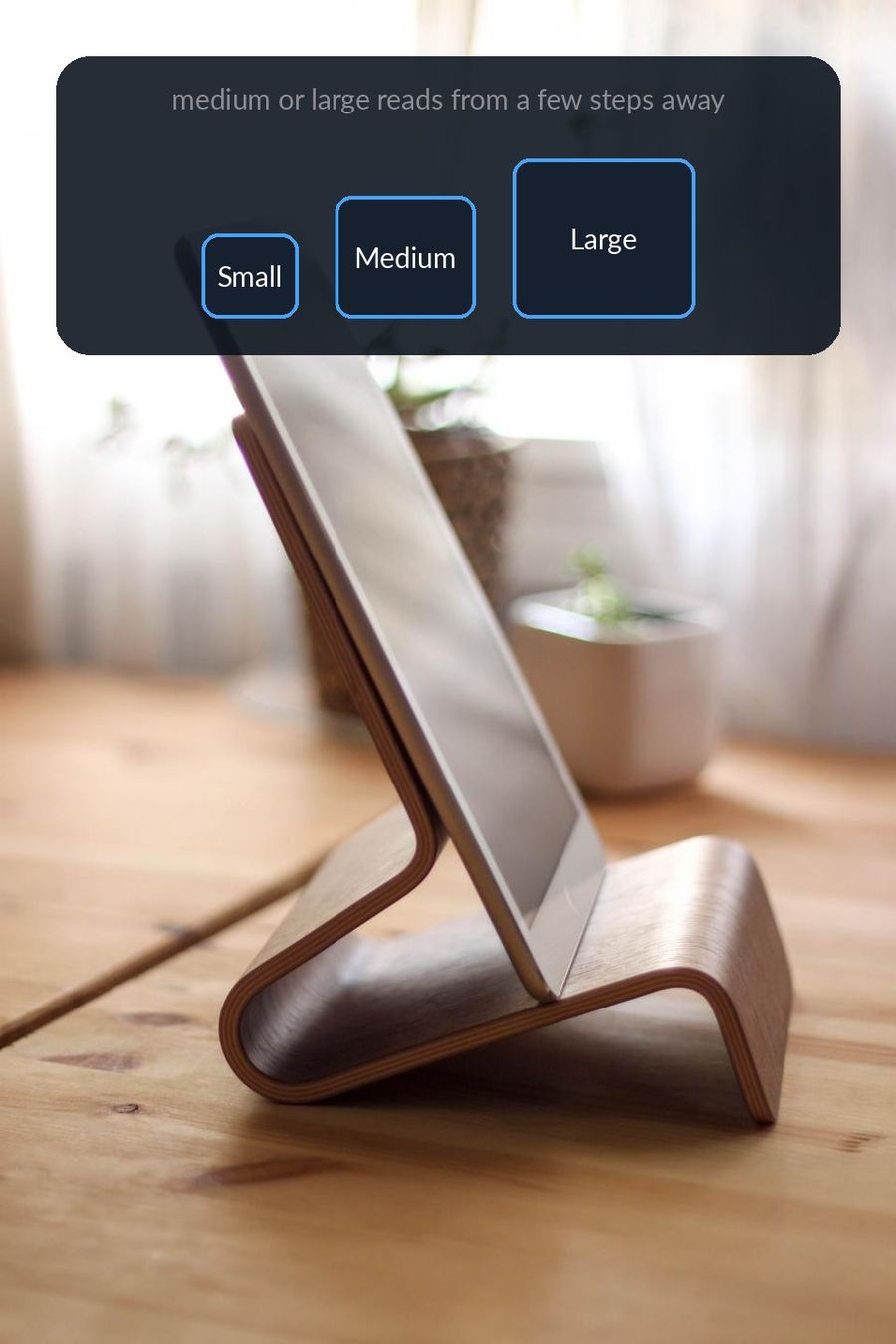
An iPad propped on a stand at a desk or kitchen counter works well as a vocabulary display: add either of Watch Your Language's widgets — Words & Translations or Words Only — to its Home Screen or Lock Screen, the same way Apple describes on its own iPad widgets support page, and a word starts changing on its own schedule every time you glance over.
Key takeaways
- Add the Words & Translations or Words Only widget to an iPad Home Screen or Lock Screen; a propped-up iPad shows a new word every glance, no touching needed.
- Both widgets come in small, medium or large Home Screen sizes and Circular, Rectangular or Inline Lock Screen shapes; Edit Widget controls Show Answer.
- No Apple Watch is required, but a widget builds recognition only, so add active practice for grammar and speaking.
Why an iPad on a Stand Works as a Vocabulary Display
A phone screen goes dark in a pocket or bag; an iPad on a stand at the edge of a desk, or leaning against the wall on a kitchen counter, stays in view for as long as it sits there. It is the kind of screen you pass on the way to the coffee machine or look up at between tasks, without having to pick anything up or unlock anything.
Watch Your Language uses that kind of glance for spaced repetition: it schedules which word to show next from the ones you keep forgetting, and you choose how often it changes, from every minute to once a week. A propped-up iPad does not need to be touched for that schedule to do its job — the next word simply appears the next time you look.
Adding a Widget to the iPad Home Screen
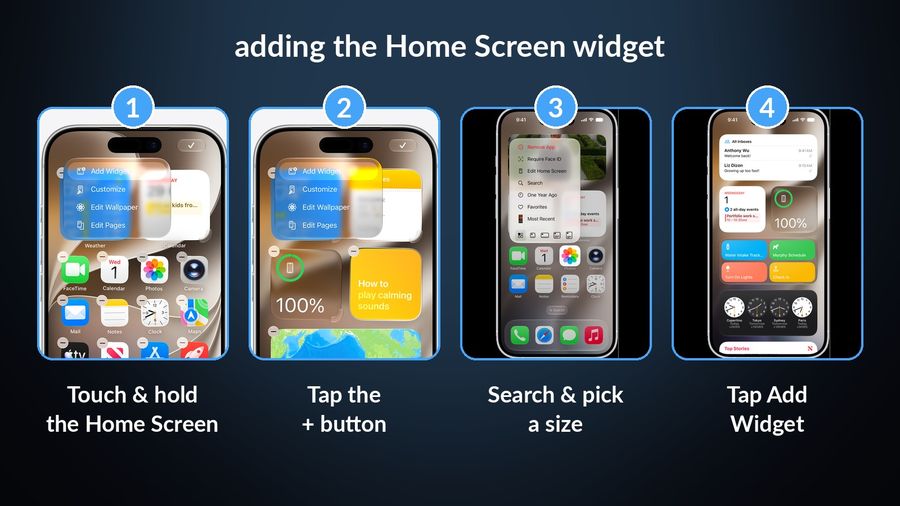
Before adding the widget, open the app and turn on at least one word pack from the Word Packs tab — or add your own words with Premium — so there is something for the widget to show. Then add the widget itself, following the same steps Apple gives for any Home Screen widget in its guide to adding, editing and removing widgets on iPad:
- Touch and hold an empty area of the Home Screen until the apps jiggle.
- Tap the + button near the top-left corner.
- Search for Watch Your Language, then choose either the Words & Translations widget or the Words Only widget, and pick a size.
- Tap Add Widget, drag it to where you want it, then tap Done.
Adding a Widget to the iPad Lock Screen
The iPad Lock Screen gained widgets of its own with iPadOS 17, and Apple's guide to creating a custom iPad Lock Screen covers adding them, in outline:
- Touch and hold the Lock Screen until the Customize button appears, then tap Customize.
- Tap Add Widgets.
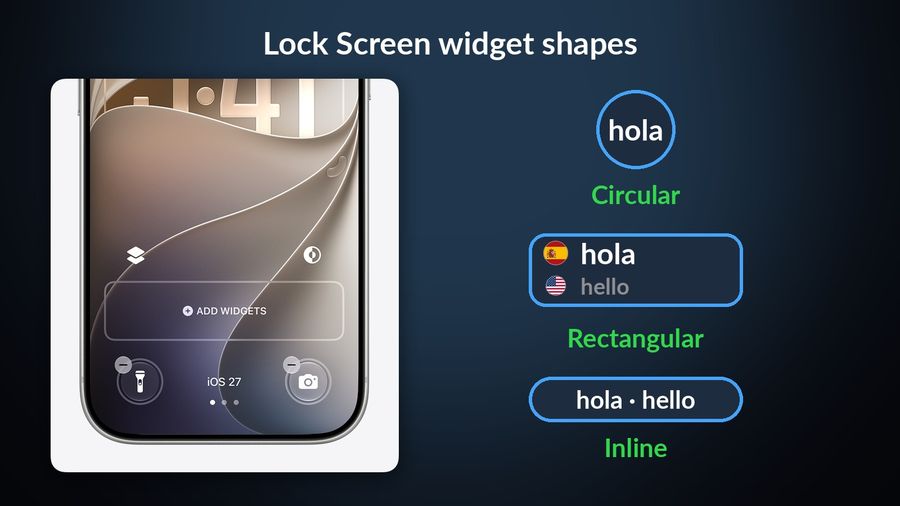
- Find Watch Your Language and tap or drag either the Words & Translations widget or the Words Only widget onto the Lock Screen, in whichever of its Circular, Rectangular or Inline shapes fits the space.
- Tap outside the widget list, then tap Done.
An iPad's Lock Screen has more open space than an iPhone's, in both portrait and landscape, so there is usually room to keep the app's widget alongside a clock or the weather rather than choosing between them.
Which Widget Size to Use
Both widgets support the same set of sizes: small, medium or large on the Home Screen, and Circular, Rectangular or Inline on the Lock Screen. On a desk or kitchen stand, medium or large reads comfortably from a few steps away; a small Home Screen widget or a Lock Screen shape works better right next to where you are sitting. The Words & Translations widget shows a word with its translation by default, which suits a display you only glance at; Words Only starts with the translation hidden, closer to testing yourself before you look.
Long-press a placed widget and tap Edit Widget to reach its settings: Show Answer reveals the translation immediately or keeps it hidden until you tap the widget, Show Mascot adds or removes the small character in the corner, and Show words in switches between App Language, Studied Language or Both Languages.
Getting More Out of the Setup
Words come from themed packs graded by CEFR level, A1 to C2, with more than 10,000 words across the app's 25+ languages, so there is usually a pack close to what you are learning without adding anything yourself. If nothing fits, Premium adds custom words: typed in directly, imported from a spreadsheet, or scanned from handwritten notes with the camera.
Apple controls how often a widget refreshes, to protect battery life, and the app's own Settings let you raise that rate if a word is changing more slowly than you would like. None of this needs an Apple Watch: without one, the iPad and iPhone widgets still run the full schedule on their own, and a watch only adds a complication on the watch face and a small practice app alongside them.
It is worth being clear about what a widget like this does not do. Watching a word change on a screen builds recognition through repeated, low-effort contact, which is genuinely useful and not the whole job of learning a language. It will not teach grammar or get you through a spoken conversation — those need active practice on top of it, not instead of it.
The same two widgets work identically on an iPhone; see setting up the Lock Screen widget on iPhone for its Circular, Rectangular and Inline shapes in detail, or using a charging iPhone as a bedside vocabulary display for a similar propped-up setup at a smaller size. And if a widget on the screen is the kind of app you are after but you have not settled on one yet, a comparison of widget-based vocabulary apps checks Watch Your Language's approach against a few others.
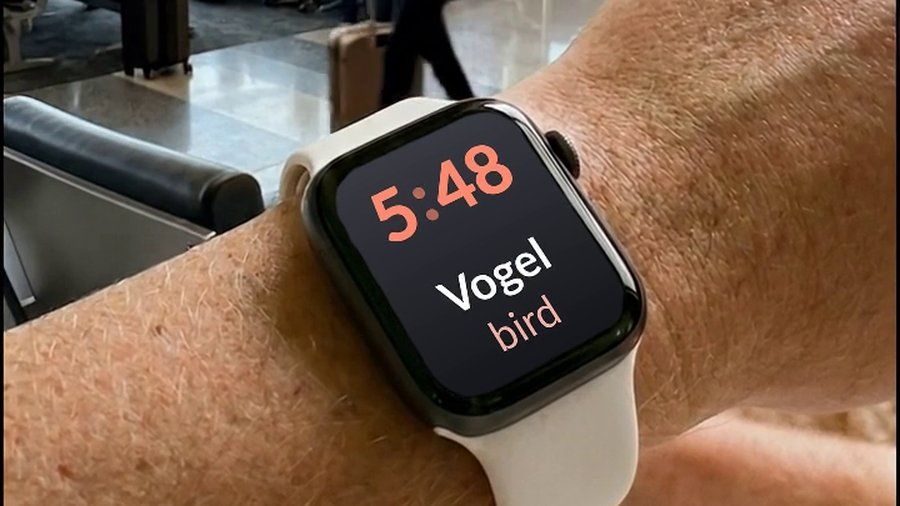

Watch Your Language shows one word at a time from more than 10,000 words across its 25+ languages, in themed packs graded A1 to C2, and schedules which one to show next from the ones you keep forgetting. On an iPad it runs as the Words & Translations or Words Only widget on the Home Screen or Lock Screen — no Apple Watch required — and Premium adds your own words, typed in, imported from a spreadsheet, or scanned from handwritten notes.