 Eleanora R.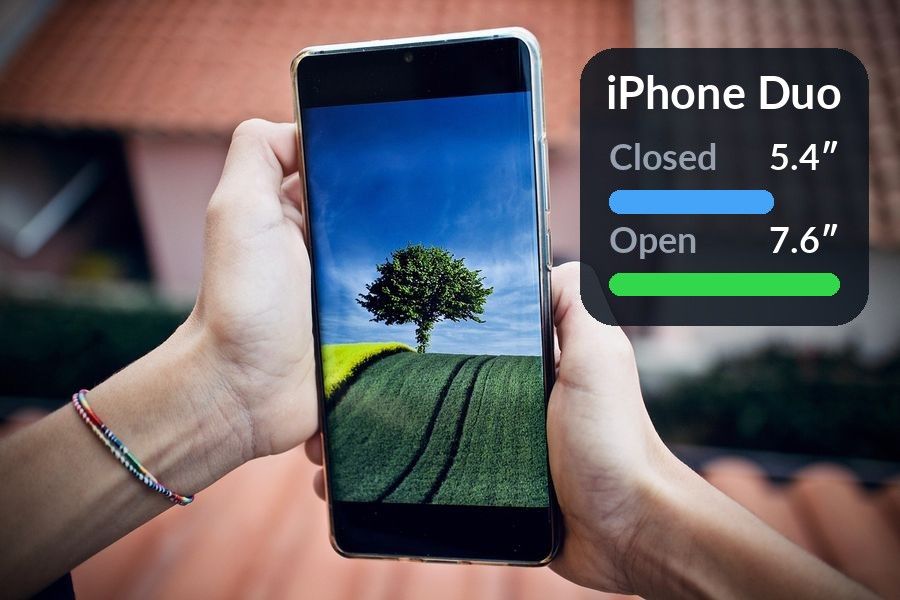
The best widgets for iPhone Duo are the ones that use its new space: Apple's extra-large widgets on the inner display, a short column of glanceable widgets in Today View, and one or two small widgets you see every time you check the time. The Duo went on sale on October 23, 2026. This guide covers what the foldable changes for widgets, which widgets fill the bigger screen well, and where a vocabulary widget fits if you want your glances to teach you something.
Key takeaways
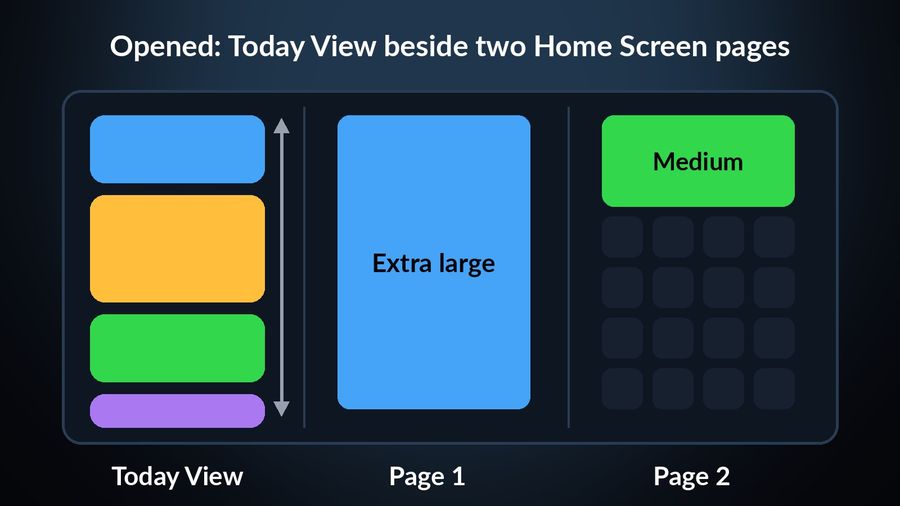
- Opened, the iPhone Duo shows two Home Screen pages with Today View on the left, so widgets there are in view whenever the phone is open.
- iOS 27 adds an extra-large widget that fills a 4×6 grid; Calendar, Photos, Weather, Music and Reminders are among the first to support it.
- Keep the outer display to one or two small widgets you read many times a day, and give the open pages to the widgets you would otherwise open an app for.
What the Duo changes for widgets
The iPhone Duo is Apple's first foldable iPhone. Closed, it is a phone with a 5.4-inch outer display; opened, it has a 7.6-inch inner display, according to TechRepublic's iPhone Duo cheat sheet. Apple's announcement describes the open layout: the display shows two Home Screen pages side by side, with Today View, a vertically scrolling list of customisable widgets, on the left. It starts at $1,999 in the United States, as MacRumors reported from the event.
That layout is the reason widgets matter more on this phone than on any iPhone before it. On a normal iPhone, Today View is a screen you have to swipe to. On the opened Duo it sits next to your apps, so whatever you put there is in view every time you unfold the phone. The two Home Screen pages beside it are also wide enough to give one whole page to a single widget.
The widget sizes, from small to extra large
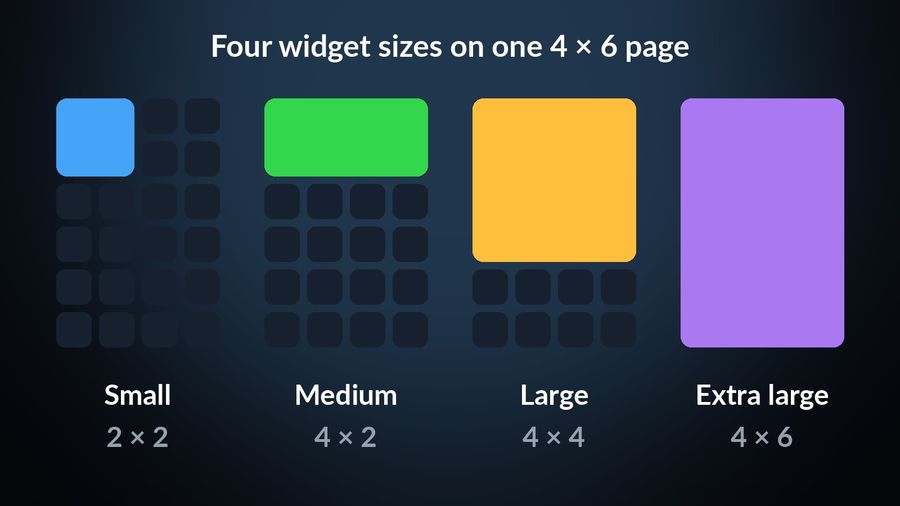
iOS 27 adds a new widget size. 9to5Mac describes it as an extra-large widget that fills a grid four columns wide and six rows tall, where the large widget fills four by four. It works on any iPhone that runs iOS 27, but 9to5Mac's October report notes that it is clearly made for the Duo's bigger screen. iPhone Mania adds that extra-large widgets can go on the Home Screen and in Today View.
A simple way to think about the four sizes on the Duo:
- Small (2×2) shows one thing: a word, a temperature, the next event. It is the size you read in under a second.
- Medium (4×2) shows one thing with context, such as a word with its example sentence, or the weather with the next few hours.
- Large (4×4) shows a list or a small dashboard.
- Extra large (4×6) fills a whole Home Screen page on the inner display. It is best for content you would otherwise open an app to see: a month of calendar, an album, a playlist.
The best widgets to start with
For now, the extra-large size comes mostly from Apple's own apps. 9to5Mac's list includes Calendar, Photos, Weather, Music and Reminders, and more third-party widgets will follow as developers update their apps for iOS 27. A layout that works well for most people:
- Calendar, extra large, on the first open page. Your day and week at a glance, the screen you would otherwise open the Calendar app for.
- Photos, extra large, on the second page. Opening the phone becomes a small pleasure rather than a wall of icons, and the page stays useful because the album changes.
- Weather and Reminders in Today View. Medium sizes work well in the column on the left: you see them the moment the phone opens, without giving up a Home Screen page.
- Music, large, if you listen a lot. Recently played music one tap away, on a page you can swipe to.
- One small widget you actually read. A word to learn, a habit tracker or a single number you care about. Small widgets are the ones you read most often, because they ask for less than a second of attention.
The outer display deserves a lighter touch. It is the screen you see most often, so keep its Home Screen to what you check many times a day. TechRepublic also notes that StandBy now works on either display without a charger, with the Duo propped open like a tent, which turns a widget into something you can read from across a desk. Our StandBy guide covers what to show there.
A vocabulary widget for the glances in between
Most of the time you look at a phone, you are not trying to learn anything: you are checking the time, a message or the weather. A vocabulary widget uses those glances. Each time you look, one word in the language you are learning is there with its translation, and over weeks the same words come back until you know them. This works on any iPhone, as our comparison of language-learning widgets explains, but the Duo gives it more places to live: the outer Home Screen, the Lock Screen, Today View and the open pages.
Two placements work well on the Duo. A small widget on the outer display shows one word every time you check the phone without opening it. A medium widget in Today View shows the word with an example sentence, which is where a bigger screen helps, because a word in a sentence is easier to remember than a word alone. If you also wear an Apple Watch, the same words can appear in a complication on your watch face.
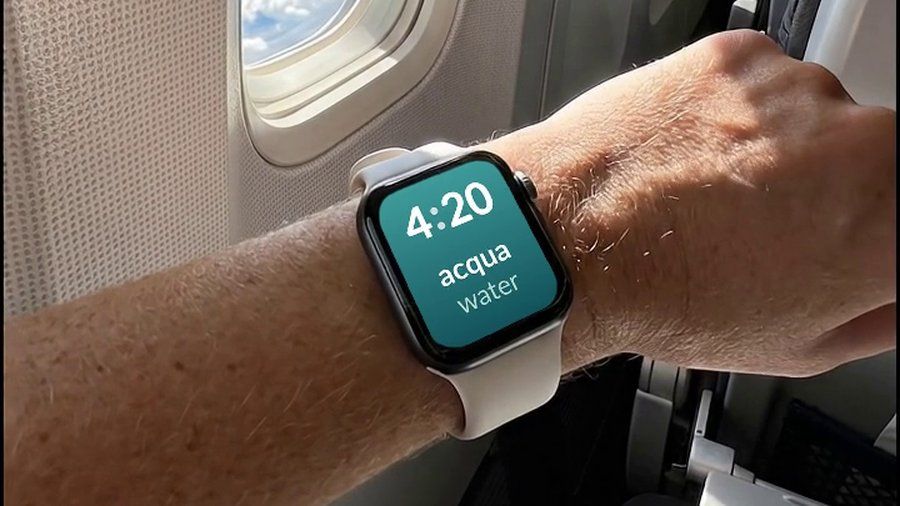
Watch Your Language shows one word at a time in small, medium, large and extra-large widgets, on the Lock Screen and on the Apple Watch, from 25+ languages and 10,000+ words. You choose how often the word changes, from every minute to once a week, and words you have not learned yet come back more often.
How to add a widget on iPhone Duo
Adding a widget works as on any iPhone running iOS 27. Apple's widget guide gives the steps:
- Touch and hold an empty part of the Home Screen until the apps start to jiggle, then tap Edit.
- Tap Add Widget, then choose a widget from the list or search for the app.
- Swipe through the sizes, then tap Add Widget.
- Drag the widget where you want it, then tap Done.
To add a widget to Today View instead, swipe right from the left edge of the Home Screen first, as the same guide explains, and add it there. On the opened Duo, Today View is already on screen. For the Lock Screen, which follows its own rules, see our Lock Screen widgets guide.
Which widgets to pick
Start with three decisions rather than thirty widgets. Give one open page to the extra-large widget you would otherwise open an app for, most often Calendar or Photos. Put two or three medium widgets in Today View, since that column is in view whenever the phone is open. Keep the outer display simple, with one small widget you read many times a day. After a week, remove anything you never looked at. If you want those glances to add up to something, a vocabulary widget is a calm way to do it: it asks for nothing, and the words are there when you look.