 Eleanora R.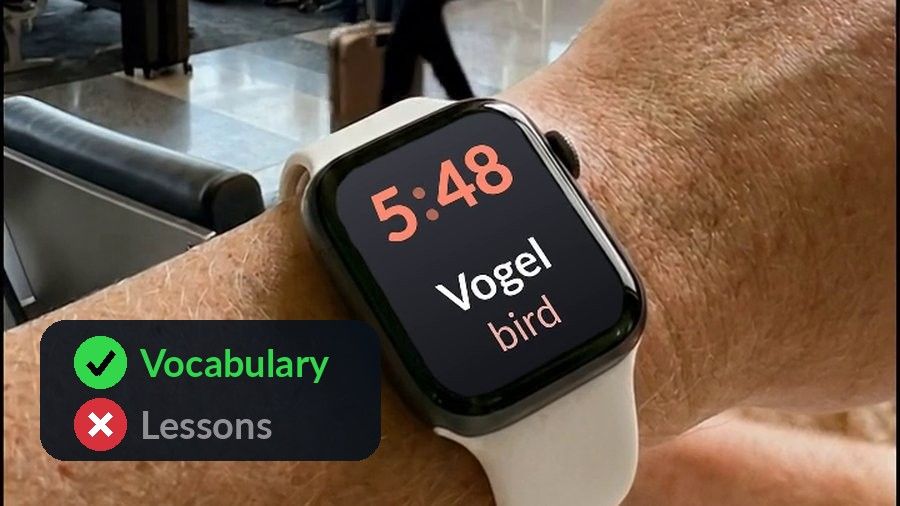
The short answer is yes and no. Yes, an Apple Watch can build real vocabulary, because a watch face is glanced at many times a day, and each glance is a few seconds of exposure to one word. Repeated like that, words stick. No, a watch cannot replace a full lesson: there is no room on the screen for a grammar explanation, no keyboard to type an answer, and no space for a conversation. An Apple Watch is well suited to one narrow job, keeping vocabulary in front of you, and not suited to teaching a language from nothing.
What a watch is good at, and bad at
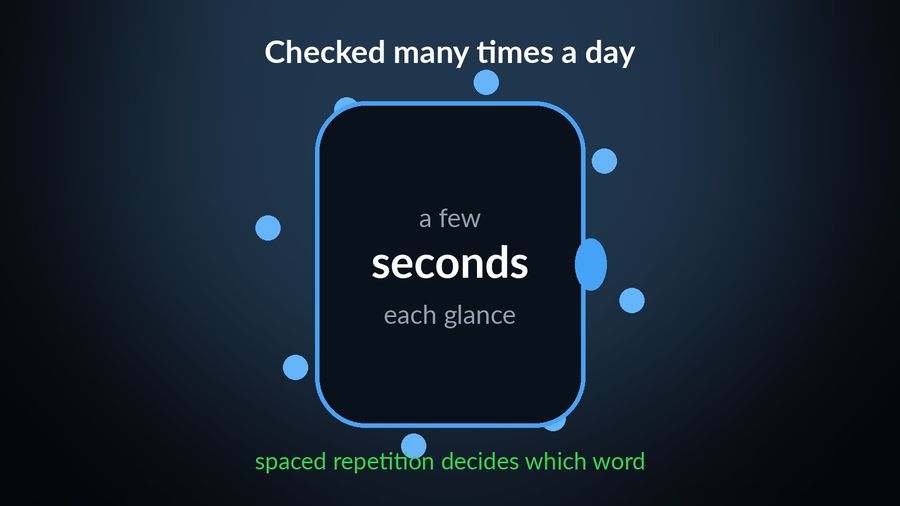
The watch's strength is frequency. An Apple Watch gets checked many times a day, mostly for the time or a notification, and each of those checks lasts a few seconds. If a vocabulary word sits where that glance lands, learning happens without setting aside any time for it — the idea behind learning vocabulary without study sessions. What decides which word appears is spaced repetition: a schedule that keeps bringing back the words you are still getting wrong, and lets go of the ones you already know, explained in full in Spaced Repetition, Explained.
The watch's weaknesses follow from its size. The screen is small, so a long word needs a face with plenty of room, or a tap to reveal the rest. There is no keyboard, so nothing you do on the wrist can be typed — no fill-in-the-blank, no writing practice, no correction. And a two-second glance is not a format that suits an explanation: grammar, sentence structure and pronunciation all need more room and more attention than a watch face gives them. For those, keep whichever course app already carries your grammar and speaking practice; a watch complication is not trying to replace it, and fewer language apps run on the wrist than you might expect — see which apps still run on Apple Watch for what each one offers there.
Setting it up with Watch Your Language
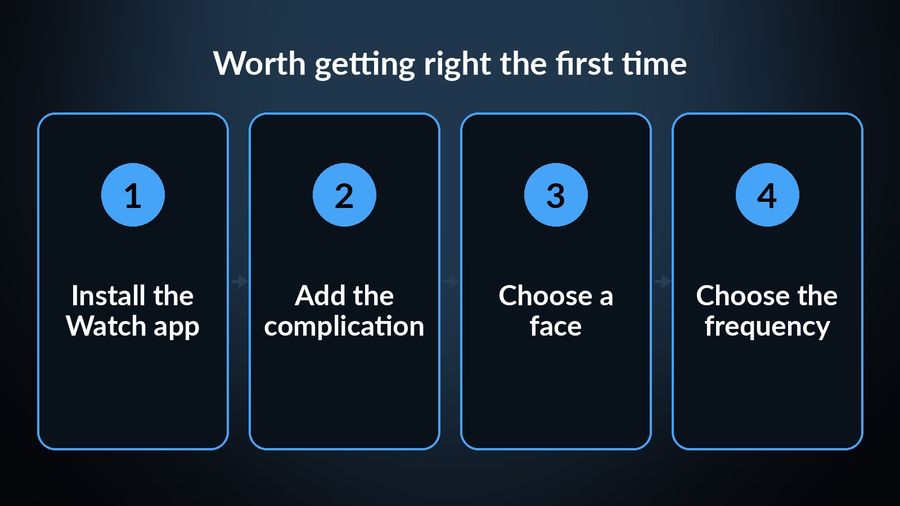
The setup has a few small choices worth getting right the first time.
Install the Watch app
Install and open Watch Your Language on your iPhone first. The Watch app itself installs from your iPhone: open the Apple Watch app, and Watch Your Language should appear there to install; if it does not, install it directly from the App Store on the watch instead.
Add the complication to a watch face
Complications are the small pieces of information — the weather, your heart rate, a stock price — that some watch faces let you place on top of them, and Watch Your Language is one of the apps you can add. Apple's own instructions: touch and hold your watch face, tap Edit, swipe left to the complications screen, tap the complication you want to change, then turn the Digital Crown to choose Watch Your Language; press the Digital Crown to save, then tap the face to switch to it (full steps at Apple's support page). Watch Your Language offers the word in several complication families — inline, rectangular, circular and corner — so the fit depends on which slot the face gives you.
Choose a face with room for the word
Not every face gives a word enough space. Extra Large gives the most room and fits both short and long words; Modular also works well. On a face with a smaller complication slot, you may need to tap it to see the full word.
Choose how often the word changes
You decide the pace, anywhere from a new word every minute to one a week, and spaced repetition decides which word that is, drawing more often on what you are still forgetting. There is no single right interval: a faster rotation means more exposure per day, a slower one means longer to sit with each word before it changes.
If the widget looks stuck
Apple, not the app, controls how often a widget is allowed to refresh, to protect battery life, so a new word does not always appear the instant it is due. Raising the refresh rate in the app's settings helps. If the widget still looks stuck after a couple of hours, remove it and add it again. It is also worth checking that your Apple Watch has connectivity — cellular data enabled, or Wi-Fi with the watch and iPhone on the same network.
Not having an Apple Watch on hand does not rule this out: the same words can show in a widget on the iPhone or iPad Home Screen or Lock Screen instead.
A small routine
The setup above is a one-time job; the routine is what actually builds vocabulary. Most people do well leaving the complication on a face they already see often, the one they check for the time, rather than a dedicated face they have to switch to. Add the same word to a Lock Screen widget on the iPhone and the words get more chances to be seen, with no extra effort. And when a word feels worth confirming rather than half-remembering, the watch app itself has a short practice mode: it reveals the word, and you mark whether you got it right, which feeds straight back into the schedule of what comes next.
None of this asks for a study session. It asks for a watch face with the complication on it, and the willingness to actually read the word each time you glance at the time.


Watch Your Language puts a vocabulary word in a complication on your Apple Watch face, chosen from whichever words you keep forgetting, and lets you set how often it changes, from every minute to once a week, across 25+ languages. It is built for exactly the kind of learning described here: brief, repeated exposure, not lessons. Start with the free pre-made word packs, from more than 10,000 words, and add your own with Premium.