 Eleanora R.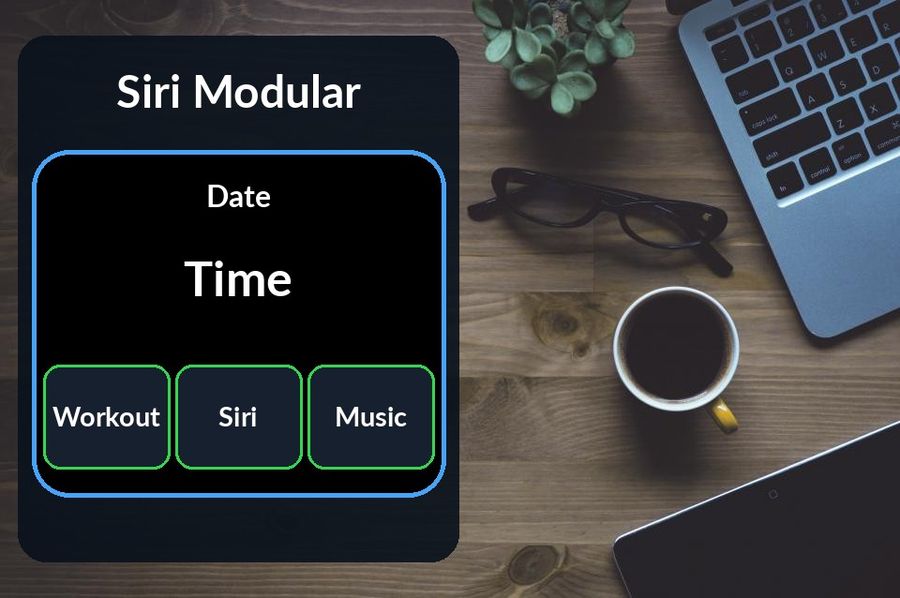
You change an Apple Watch face in one of two places: on the watch itself, by touching and holding the display, or in the Apple Watch app on your iPhone, which shows the whole Face Gallery and lets you set up a face before it reaches your wrist. Both routes work on watchOS 27, and the steps below follow Apple's own guide, Change Apple Watch faces. The same page covers the new Siri Modular face, photo faces, complications and what to try when a face will not change.
Key takeaways
- Touch and hold the display, swipe to a face, and tap it; turn on Swipe to Switch Watch Face in Settings, Clock, to skip the touch and hold.
- Add faces from the Face Gallery in the Apple Watch app or with the Add button on the watch; edit complications from Edit on the last screen.
- For a vocabulary complication, Extra Large gives a word the most room, and Modular also works.
Switch to a face you already have
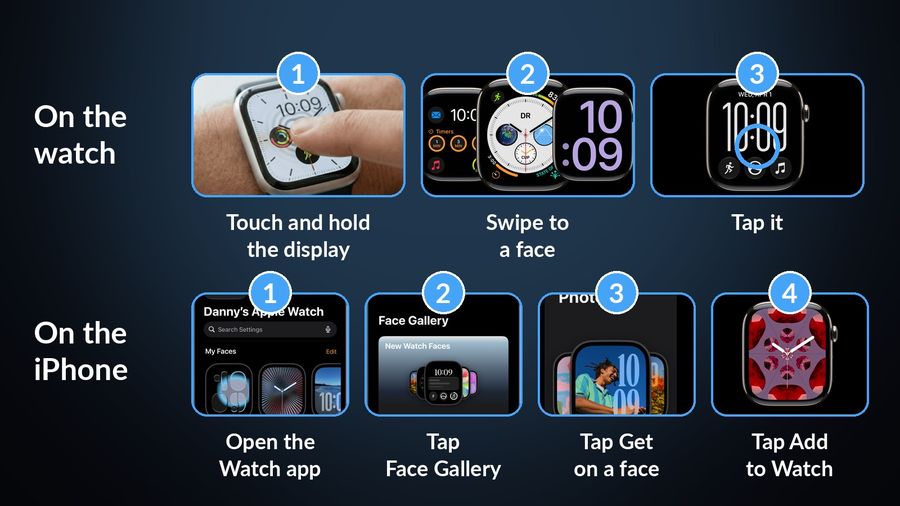
Your faces live in a collection, and switching between them is the quickest change you can make. Per Apple, touch and hold the display, swipe to the face you want, then tap it.
If you would rather swipe straight between faces without the touch-and-hold step, open the Settings app on the watch, tap Clock, and turn on “Swipe to Switch Watch Face.” To reorder the collection on the watch, touch and hold the display, touch and hold again, then drag a face left or right. On the iPhone, open the Apple Watch app, tap My Watch, and look under My Faces; tap Edit to drag the reorder icon.
Add a face from the Face Gallery
A face you have never used has to be added first. On the watch, touch and hold the display, swipe left to the end, tap the Add button, pick a collection such as New Watch Faces or Data Rich (or tap All Watch Faces), tap Get next to the face you want, then tap Add. You can customize it afterwards.
The iPhone gives you more room to choose. Open the Apple Watch app and tap Face Gallery. Choose a category such as Health and Fitness, Photos or Data Rich, or scroll down and tap See All Watch Faces. Tap Get on a face, choose an option, and customize it: pick a color or style, or tap a complication position (Top Left, Top Right or Bottom), swipe through the options and select one. To leave a position empty, scroll to the top of the list and choose Off. Tap Add to Watch, and the face joins your collection and becomes the current face.
Edit a face and add complications
A complication is a small piece of information on the face, such as Activity or Heart Rate. According to Apple's guide, Add complications to the watch face, you add or change one like this:
- With the face showing, touch and hold the display, then tap Edit.
- Swipe left until you reach the last screen. If the face supports complications, they appear there.
- Tap the complication you want to change, then turn the Digital Crown to scroll through the options.
- Press the Digital Crown to save, then tap the face to switch to it.
Some apps from the App Store also include complications, so they appear in the same list. How many slots you get depends on the face. Apple's Faces and features page says, for example, that Modular has six complication slots, while on X-Large a complication fills the screen.
The new Siri Modular face in watchOS 27
Siri Modular is new in watchOS 27. Apple's What's new in watchOS 27 describes it as the face “for making quick requests to Siri,” with the date at the top of the screen, followed by the time, and Workout, Siri and Music complications at the bottom. In Faces and features, Apple says that with this face, Siri centers information that is most important to you, and lists two things you can customize: Style (I, II, III, IV) and Font (Modern, Classic, Rounded).
You add it like any other face: from the Face Gallery on the iPhone, or with the Add button on the watch. Apple also notes that not all features are available in all areas and on all models. Separately, it lists Siri AI as available in beta on watchOS 27, on Apple Watch Series 9 and later, Ultra 2 and later, and SE 3, paired with an Apple Intelligence-enabled iPhone, in English to start and not initially in the EU. If the Siri Modular face does not show up for you, those notes are the first place to check.
Make a face from your photos
Apple's Customize the Photos watch face page gives two routes. On the iPhone, open the Apple Watch app, tap Face Gallery, select the Photos category and pick a style. Then choose a source: Shuffle (your library, Featured or People, or a Collection album) or Choose Photos to pick them yourself. Adjust the layout options and tap Add.
On the watch, open the Photos app, tap an album such as Featured or Favorites, tap a photo, tap the Action button, scroll down, tap Create Watch Face, then tap Photos. Manual selection allows up to 24 photos, and shuffling your library or a collection selects 16 photos each day. A new photo appears each time you raise your wrist or tap the display.
Why is my Apple Watch face not changing?
Apple's guide does not have a troubleshooting chapter, but each of its steps points to a likely cause.
- Swiping does nothing. Without the “Swipe to Switch Watch Face” setting (Settings, Clock), you have to touch and hold the display first, then swipe and tap.
- The face you want is not there. Only faces in your collection appear. Add it from the Face Gallery. A face you removed can be added again later.
- No complication options. Complications appear on the last Edit screen, and only if the face supports them.
- Photos missing. Confirm they are in your synced album.
- The face shows the wrong time. Check Settings, Clock, +0 min: it sets the face ahead by up to 59 minutes, and changes only the displayed time, not alarms, notification times or World Clock.
To remove a face you no longer use, touch and hold the display, swipe to the face, swipe up, then tap Remove. On the iPhone, tap My Watch in the Apple Watch app, tap Edit under My Faces, tap the delete button next to the face, then tap Remove.
Finish with a vocabulary complication
Once a face has a free complication slot, you can use it for vocabulary. Watch Your Language shows a word in a complication, and it works best on Extra Large (Apple's guide calls it X-Large), where a complication fills the screen and leaves room for long words. Modular also works well. In general, any face that gives the complication enough space will do; on a face with very little space, you may need to tap the complication to see the whole word.
To set it up, add the face, then follow the Edit steps above and pick the app in the complication list. Our setup guide covers the app side, including how often the word changes, and this comparison of Apple Watch language apps shows where it fits. If a word looks stuck, Apple controls how often complications refresh to save battery, so raise the refresh rate in the app's settings, or remove the complication and add it again.
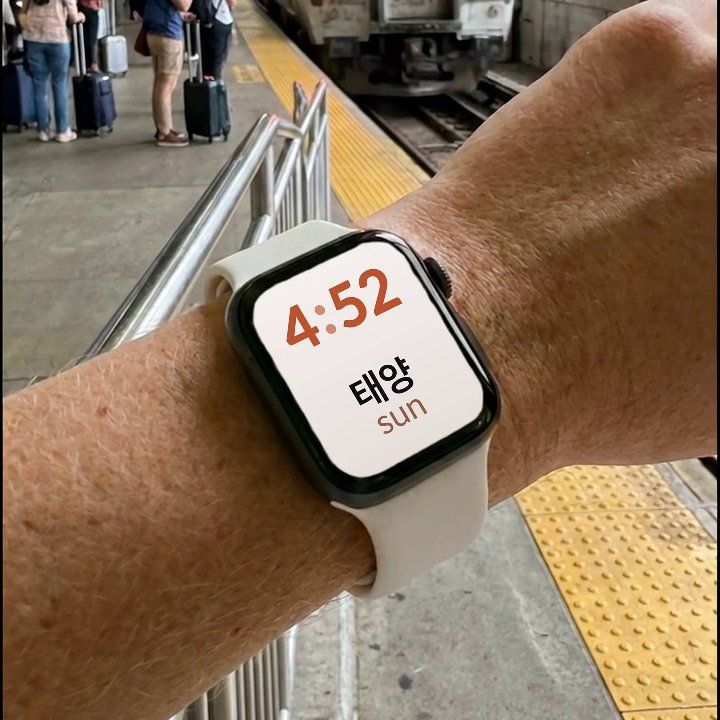

Watch Your Language puts a vocabulary word in a complication on your Apple Watch face, across 25+ languages and from 10,000+ words with free pre-made word packs. You decide how often the word changes, from every minute to once a week, and you mark words as learned yourself.