 Eleanora R.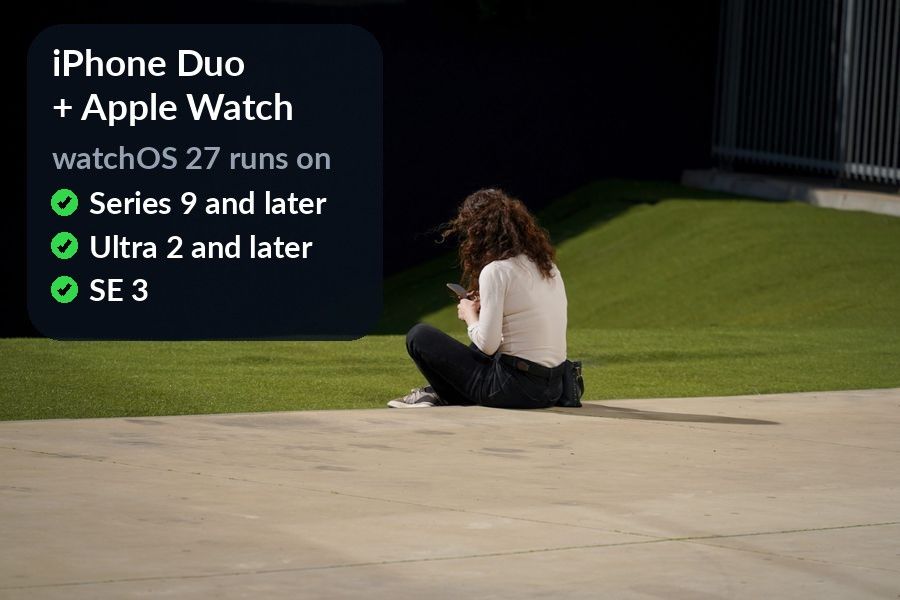
Pairing an Apple Watch with an iPhone Duo works the same way as moving it to any new iPhone: back up the old phone, set up the Duo from that backup, and tap Continue when it offers to use your watch. The one thing to check first is your watch model. The Duo ships with iOS 27, and only some watches run the matching watchOS 27. This guide covers which watches qualify, the steps in order, what to do when the Duo asks you to start pairing from scratch, and the first things worth setting up once the watch is connected.
Key takeaways
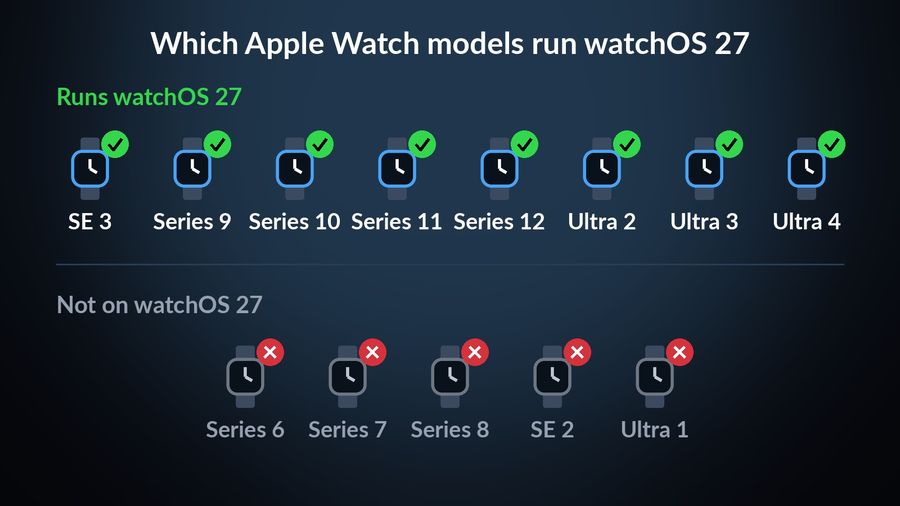
- Apple Watch SE 3, Series 9 and later, and Ultra 2 and later run watchOS 27; for older models, check Apple's compatibility table before you switch.
- Back up the old iPhone with Health sync on, restore the Duo from that backup and tap Continue when it offers your watch.
- Unpair only if the Duo shows Start Pairing; erase the watch and restore it only if the old iPhone is gone.
Will your Apple Watch work with iPhone Duo?
The iPhone Duo went on sale on October 23, 2026, with iOS 27.1, a version Apple released for the Duo alone, as MacDailyNews reported on launch day. On the watch side, MacRumors and AppleInsider list the models that run watchOS 27: Apple Watch SE 3, Series 9 and later, and Ultra 2 and later, which includes this year's Series 12 and Ultra 4. Apple's first list left out Series 9 and was later corrected. The same reports say watchOS 27 no longer supports Series 6, 7 and 8, SE 2 and the first Ultra.
If your watch is on the supported list, it will update to watchOS 27 and work with the Duo like any current watch. If it is one of the older models, do not assume either way: Apple keeps a table of which Apple Watch works with which iPhone and iOS version, and that table is the place to check before you trade in your old phone.
Before you switch: prepare the old iPhone
Apple's guide to pairing your watch with a new iPhone asks for a few things before you start. Have your Apple Account password and your watch passcode ready, connect both iPhones to Wi-Fi, and charge the watch and the new phone to at least 50 percent. Then do two things on the old iPhone:
- Turn on Health sync in iCloud. In Settings, tap your name, then iCloud, then Saved to iCloud, then Health, and make sure Sync this iPhone is on. This is how your Health and Activity data follows you.
- Back up the old iPhone to iCloud or to a computer. If you use a computer, encrypt the backup, as Apple's guide explains, so Health data is included. Backing up the iPhone also backs up the Apple Watch.
Leave the watch paired to the old phone for now. In the normal case you do not need to unpair it first; the Duo takes it over during setup.
Move your watch to the iPhone Duo
With the backup done, the move itself happens during the Duo's own setup, following the same Apple guide:
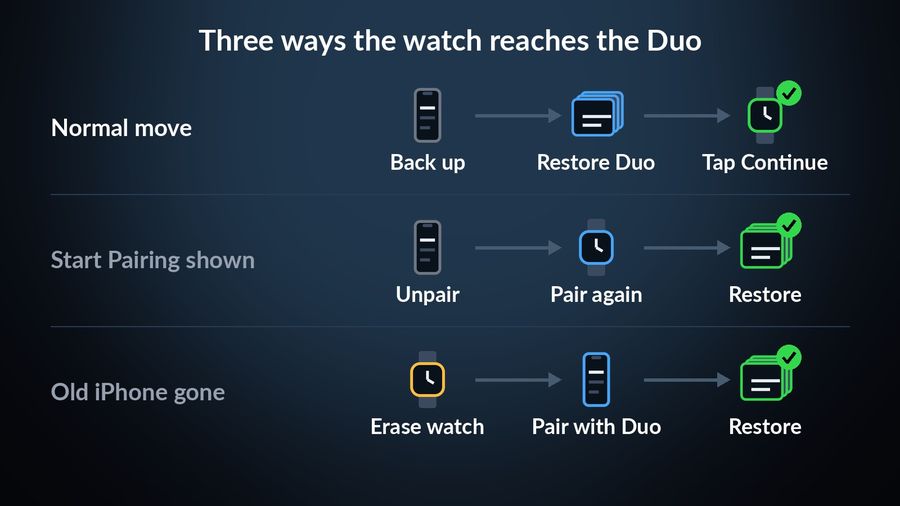
- Start setting up the iPhone Duo and, when asked, restore it from the backup you just made. Choose the most recent one.
- When the Duo asks whether you want to use your Apple Watch, keep the watch on your wrist and unlocked, and tap Continue.
- Keep the two devices close while the watch moves over. Because the iPhone backup also holds the watch's backup, your watch comes over as it was.
When it finishes, open the Apple Watch app on the Duo and check that your watch shows up there before you erase or hand over the old phone.
If you see Start Pairing, or the old iPhone is gone
If the Duo shows Start Pairing instead of offering your watch, the watch is still tied to the old iPhone. Apple's guide says to unpair it first, then set it up again with the Duo.
If you no longer have the old iPhone, Apple's troubleshooting page describes the route: erase the Apple Watch, open the Apple Watch app on the new iPhone and pair it, then restore from the latest backup when asked. You may lose Activity, workouts or settings changed since that backup was made, so this is the route to use only when the normal one is not available.
First things to set up on the watch
A new iPhone is a good moment to rethink what your watch face shows, because the move restores everything as it was. Two changes are worth a minute. First, check that the apps you rely on reinstalled on the watch; the Apple Watch app on the Duo lists them. Second, look at your complications, the small pieces of information on the face, and keep only the ones you read. A face you check many times a day is valuable space, and our guide to the best Apple Watch faces by purpose helps you choose one. To swap a complication, touch and hold the face, tap Edit, swipe to the complications, tap a slot and turn the Digital Crown to pick an app, as Apple's complication guide describes.
One complication that makes those glances count is a word in a language you are learning. Each time you check the time, the word is there with its translation, and over a few weeks the same words come back until they stick. Our guide to learning a language on an Apple Watch explains how that works.
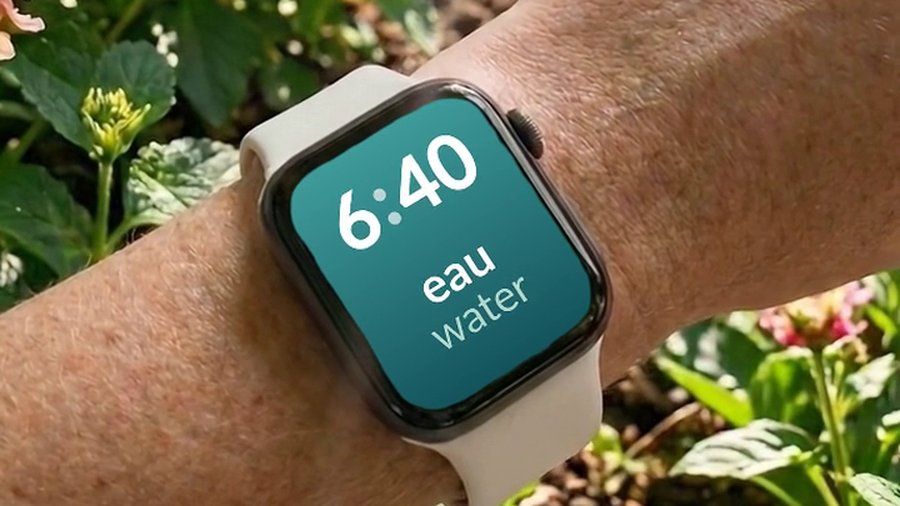

Watch Your Language puts one vocabulary word in a complication on your watch face and the same words in widgets on your iPhone Duo, from 25+ languages and 10,000+ words. You choose how often the word changes, from every minute to once a week.
In short
Check that your watch runs watchOS 27, back up the old iPhone with Health sync on, restore the Duo from that backup and tap Continue when it offers your watch. Unpair only if the Duo shows Start Pairing, and erase the watch only if the old phone is gone. Then spend two minutes on the face you will look at all day. For the phone side of the Duo, see the best widgets for iPhone Duo.