 Paul L.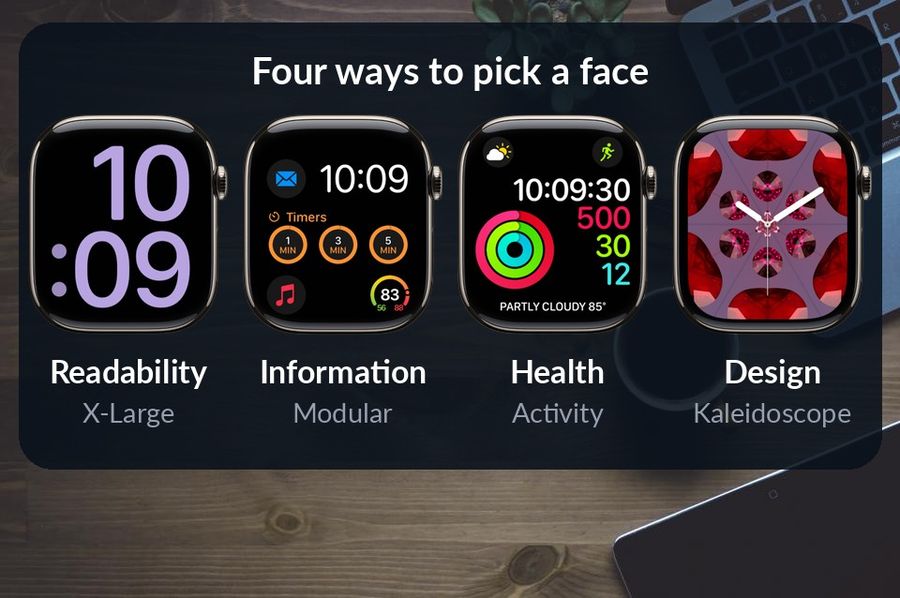
The best Apple Watch face depends on what you want from a glance. For a clean screen, choose Simple or Utility. For the largest possible text, choose X-Large. For the most information at once, choose Modular or Infograph. For health, the Activity faces are the clearest, and for looks, Kaleidoscope or Solar Analog. The sections below explain each pick, then show how to add a face and put a complication on it, following Apple's own guide for watchOS 27.
Key takeaways
- For a clean screen, pick Simple or Utility; for the largest text, X-Large; for the most information, Modular or Infograph.
- For health, Activity Analog and Activity Digital show your Activity progress, and most faces also accept Heart Rate and Sleep complications.
- The app's FAQ names Extra Large as the best face for showing short and long words in its complication, with Modular also working well.
How we chose
Every face below comes from Apple's Apple Watch faces and features page in the watchOS 27 version of the Apple Watch User Guide, which describes each face and lists the complications it accepts. We grouped the faces by the four reasons people usually change face: to read it more easily, to see more data, to follow their health, or because they like how it looks. The descriptions and numbers here are Apple's. Which face suits you is a matter of taste, so each section names two or three candidates rather than a single winner.
Best faces for readability
If the screen feels crowded, start with Simple. Apple describes it as a minimalist and elegant face that lets you add detail to the dial and features to the corners, so you decide how bare it stays. Utility is the practical middle ground: a classic dial with up to three complications, enough for the date, the weather and one more thing you check often.
When size matters more than anything else, X-Large is the face Apple suggests for when you need the largest available display. It shows the time, or a single complication, across the whole screen. It is the easiest face to read at arm's length, in bright light or without glasses, and the trade-off is that it shows one thing at a time.
Best faces for information
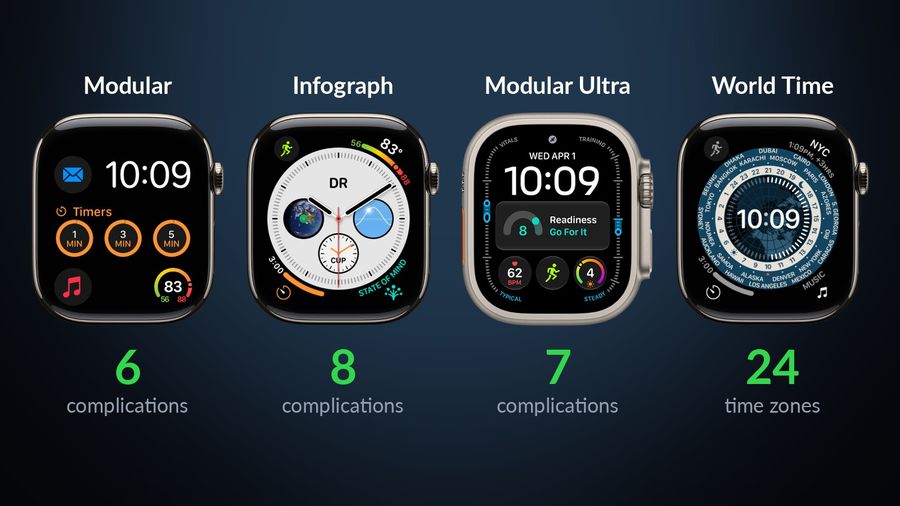
Modular is the long-standing choice for data: six complication slots in what Apple calls an easy-to-read typographic interface. Its large central slot is wide enough for a calendar entry, a forecast or a line of text. Infograph fits even more, with up to eight full-color complications and subdials, which suits people who like everything visible at once.
On an Apple Watch Ultra, Modular Ultra offers seven complications and six options for the size and layout of the time. If you work across time zones, World Time tracks the time in 24 time zones at once, which saves opening the Clock app before every call abroad.
Best faces for health and fitness
Activity Analog shows your Activity progress superimposed over a traditional analog clock, and Activity Digital shows the time in large, uniform digits alongside the same progress. Both keep your rings in view all day without opening an app. Both also accept Heart Rate, Sleep and Blood Oxygen complications, and Activity Digital adds Vitals.
You do not need an Activity face to see health data, though. Heart Rate and Sleep are available on most of the faces in this guide, including Modular, Utility and Infograph, so you can keep the layout you like and add the health readings you care about.
Best faces for design
Kaleidoscope turns a photo you select into a face with evolving patterns of shapes and colors, so it looks different from anyone else's. Solar Analog features light and shadows that shift throughout the day in response to the position of the sun, which makes the time of day visible at a glance. Motion displays an animated theme. If you would rather see your own pictures, the Photos face has its own page in Apple's guide, Customize the Photos watch face.
| Purpose | Faces to try | What they offer |
|---|---|---|
| Readability | Simple, Utility, X-Large | A clean dial, or the largest available display |
| Information | Modular, Infograph, Modular Ultra, World Time | 6 to 8 complications, or 24 time zones at once |
| Health | Activity Analog, Activity Digital | Activity progress, plus Heart Rate and Sleep complications |
| Design | Kaleidoscope, Solar Analog, Motion | Patterns from a photo, light that follows the sun, animation |
How to add and switch faces
You can switch faces on the watch itself. With the current face showing, touch and hold the display, swipe to the face you want, then tap it. To add a face you do not have yet, touch and hold the display, swipe left all the way to the end and tap the Add button. Pick a collection, such as New Watch Faces or Data Rich, tap Get next to a face, then tap Add.
On the iPhone, the Apple Watch app's Face Gallery is easier for browsing. Tap Face Gallery, choose a category, tap Get on a face and customize its color, style and complications before tapping Add to Watch. Apple's Change the watch face page has every step.
How to add a complication
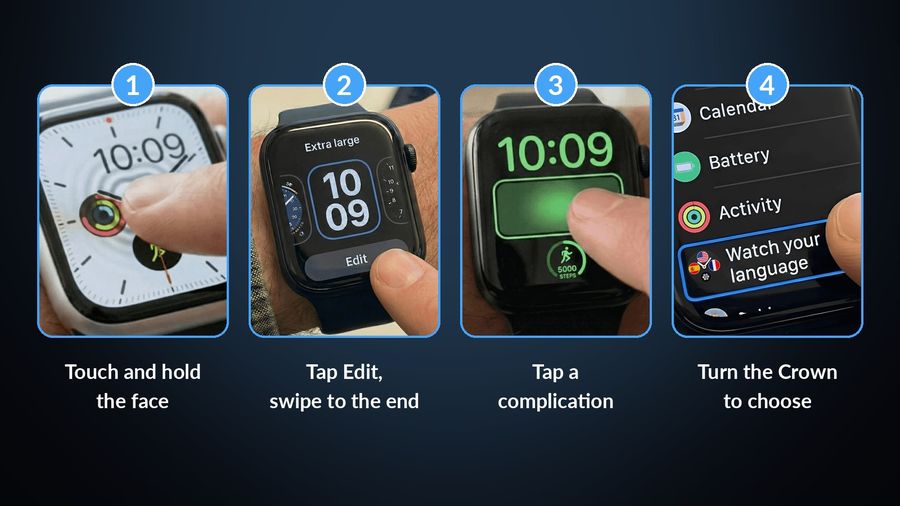
A complication is the small piece of information a face shows next to the time: the weather, your next event, your heart rate. With the face showing, touch and hold the display and tap Edit. Swipe left all the way to the end, tap a complication to select it, then turn the Digital Crown to choose a new one. Press the Digital Crown to save, then tap the face to switch to it. Apple's Add complications to the watch face page notes that some apps from the App Store also include complications, and those appear in the same list.
Which face shows a vocabulary word best
A complication can carry more than data. Watch Your Language puts a word you are learning on the face with its translation, such as hola above hello for a Spanish learner, so every glance at the time is also a short review. It offers inline, rectangular, circular and corner complications, which covers the slots on the faces above.
Some slots are roomier than others. The app's FAQ names Extra Large as the best face for showing both short and long words, and says Modular also works well, since its large central slot fits a word and its translation on two lines. Any face with enough space for the complication will do; on a face with a very small slot, you may need to tap the complication to see a long word in full. For a wider comparison of what a watch can do for language learning, see Can you learn a language on an Apple Watch? and our roundup of the best Apple Watch apps for learning a language.
Which one to pick
Start from what you look at most. If it is the time, Simple or X-Large keeps it clear. If it is your schedule and the weather, Modular or Infograph shows them together. If it is your rings, an Activity face keeps them in view. Faces are free to add and quick to switch, so you can keep two or three in your collection, a dense one for work and a quiet one for the weekend, and swipe between them as the day changes.
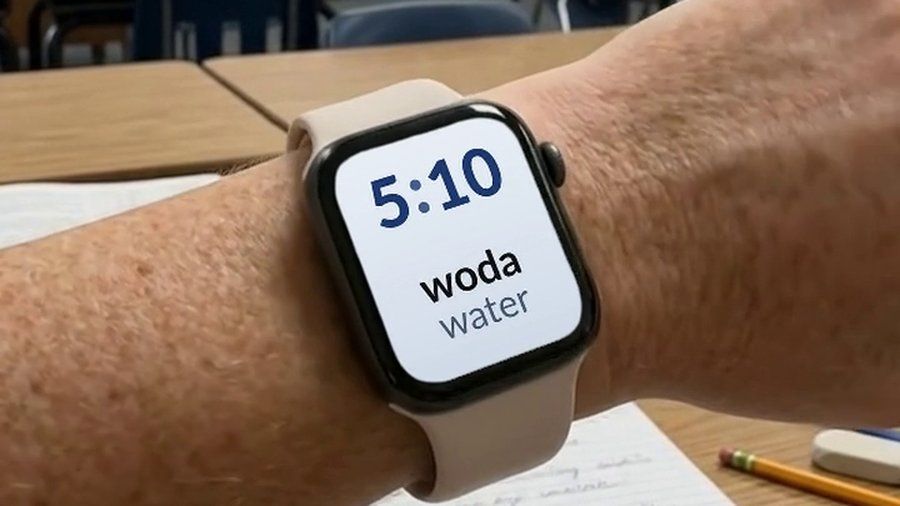

Watch Your Language shows a word you are learning, and its translation, as a complication on your Apple Watch face. Add it once, and every time you check the time you see a word from your list, in any of 25+ languages.