 Eleanora R.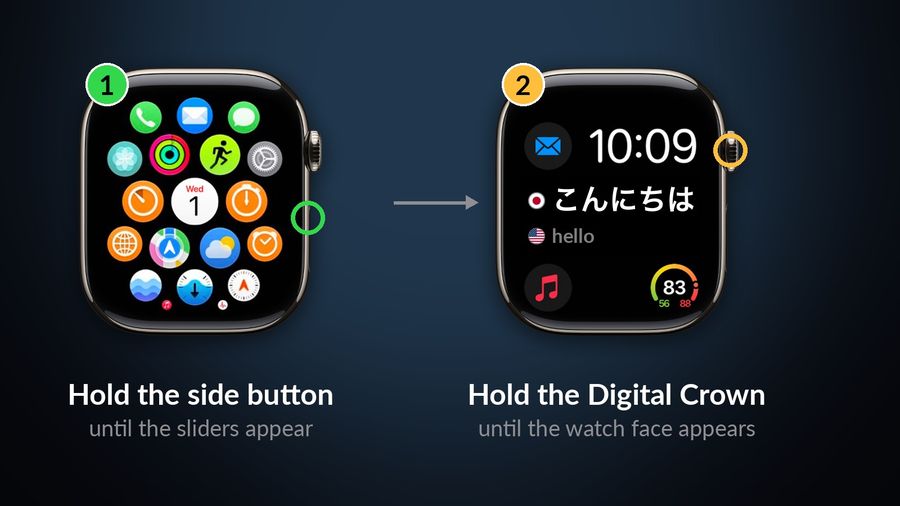
Quick answer: in watchOS 27, Apple's own guide closes an app in two steps. While inside the app, press and hold the side button until the sliders appear, then press and hold the Digital Crown until the watch face appears. The app has then quit. Apple lists this under Use apps on Apple Watch and describes it as a fix for an app that is not responding. It does not describe swiping an app away from a list of recent apps.
Key takeaways
- Apple's watchOS 27 guide quits an app: while inside it, hold the side button until the sliders appear, then hold the Digital Crown until the watch face appears.
- Apple says there is typically no reason to quit apps and that it saves no battery; quit only an app that is not responding.
- Reports that the App Switcher is back in a watchOS 27.2 beta are unconfirmed by Apple; restart or force restart if quitting does not help.
Do you need to close apps at all?
Usually not. The same Apple page says: “Typically, there’s no reason to quit an app; quitting it doesn’t save battery power, for example.” The watch manages apps that are out of view on its own, so closing every app after you use it adds taps and nothing else. Quitting is for one situation: an app is not responding, and Apple suggests quitting and reopening it to try to resolve the issue (Apple Watch User Guide).
To leave an app without quitting it, Apple says to press the Digital Crown once to reach the Home Screen, then press it again to switch to the watch face.
Steps: quit a frozen app in watchOS 27
- Open the app that is stuck, so that it is the one on screen.
- Press and hold the side button, the one below the Digital Crown, until the sliders appear.
- Press and hold the Digital Crown until the watch face appears.
- Open the app again from the Home Screen and check whether it responds.
Hold the Digital Crown on the sliders screen. Pressing it briefly there only closes the sliders and leaves the app running.
Where did the App Switcher go?
If you are looking for the old way (double-click the Digital Crown, swipe an app left, tap the X), here is what can be confirmed. Apple’s watchOS 27 page Use buttons and gestures still reads “Double-click to open the App Switcher” for the Digital Crown. Apple’s watchOS 27 page for apps, quoted above, no longer mentions the App Switcher at all, and Apple’s What’s new in watchOS 27 does not say anything about the gesture changing. Apple’s pages therefore disagree with each other, and none of them explains the change.
What people report is clearer. A tester described on the Apple Developer Forums that a double press no longer opens the switcher in a watchOS 27 beta, and received no answer from Apple. MacRumors says the double-click is now reserved for Live Rewind, a feature Apple says is coming later this year to Apple Watch Series 12 and Apple Watch Ultra 4, and iThinkDifferent adds that double-clicking now does the same as a single click. Those are reports, not Apple documentation. The practical conclusion is simple: if a double-click does nothing useful on your watch, do not expect a setting to bring it back, and use the side button and Digital Crown steps above.
One more report concerns a test version. MacRumors writes that the second watchOS 27.2 beta brings the App Switcher back, opened by pressing and holding the bottom of the screen while inside an app. It reports no Apple statement, and Apple has not documented it. It is beta behaviour and may change before release, so treat it as unconfirmed until it appears in Apple’s guide for the version you install.
If the app, or the watch, stays frozen
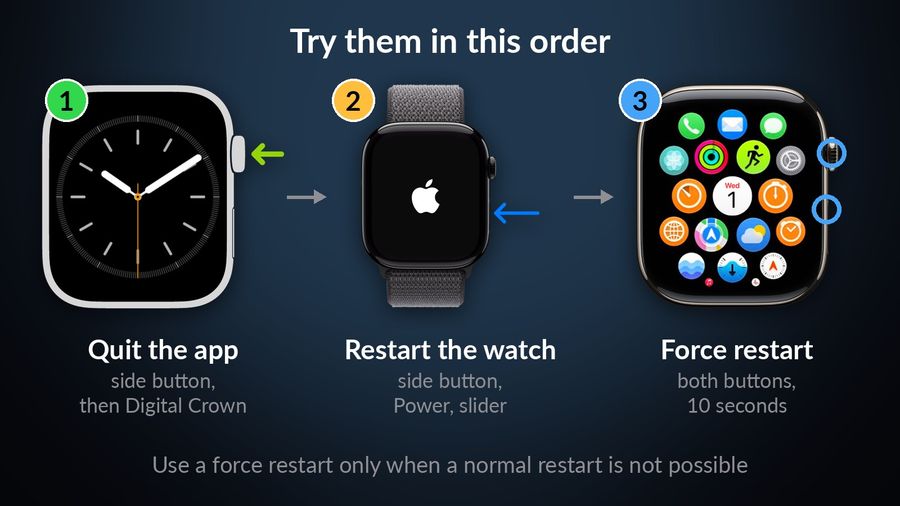
Work through these in order, stopping when the problem is gone.
- Quit and reopen the app with the steps above.
- Restart the watch. Per Apple’s restart page, press and hold the side button until the sliders appear, tap the Power button, then drag the Power Off slider. To turn it on again, hold the side button until the Apple logo appears. A watch cannot be restarted while it is charging.
- Restart the iPhone it is paired with. Apple suggests restarting both when you are fixing a problem.
- Force restart, only if the watch will not restart normally: hold the side button and the Digital Crown together for at least 10 seconds, until the Apple logo appears. Apple says to do this only if you are unable to restart your Apple Watch.
Getting back to an app without a switcher
Closing apps was often a way of finding the one you used a minute ago. According to Apple’s watchOS 27 overview, the app grid is now dynamic: it highlights apps suggested by Siri and those you use often or recently. Press the Digital Crown from the watch face to see it. For one app you open all the time, a watch face complication is faster still, which is why the next section is about vocabulary rather than switching.
Why a vocabulary complication needs none of this
A language app does not have to be opened, and so never has to be closed, if its content sits on the watch face. That is the idea behind a complication: the word is already there when you check the time, and you do not leave the face to see it. If the habit you are building is a few seconds of vocabulary a day, the less you handle apps on your wrist the better. The setup is covered in Learn a Language on an Apple Watch, and which language apps run on Apple Watch compares the options. If you also use your iPhone, the Lock Screen widgets guide shows the same idea on the phone.


Watch Your Language puts one vocabulary word on your watch face as a complication, so there is nothing to open or quit: a word from your own list sits next to the time, and it changes on a timer you choose. It covers 25+ languages and 10,000+ words.