 Paul L.
A new Apple Watch Ultra 4 or Series 12 is mostly a matter of waiting for the watch to sync with your iPhone. This guide covers the order that works best: pair, restore or start fresh, choose a face, change the band if you want a different one, and then add the things you want to see every day. It is a setup guide, not a review, and it only states hardware facts that Apple publishes itself.
Key takeaways
- Pairing starts with the iPhone: hold it near the watch, tap Continue, then choose a backup from your old watch or set up as new.
- To change the band, lay the watch face down, hold the band release button and slide the band out; a new band clicks into place.
- For a vocabulary complication, touch and hold the face, tap Edit, swipe to the end and pick the app; Extra Large or Modular leaves room for longer words.
Before you start
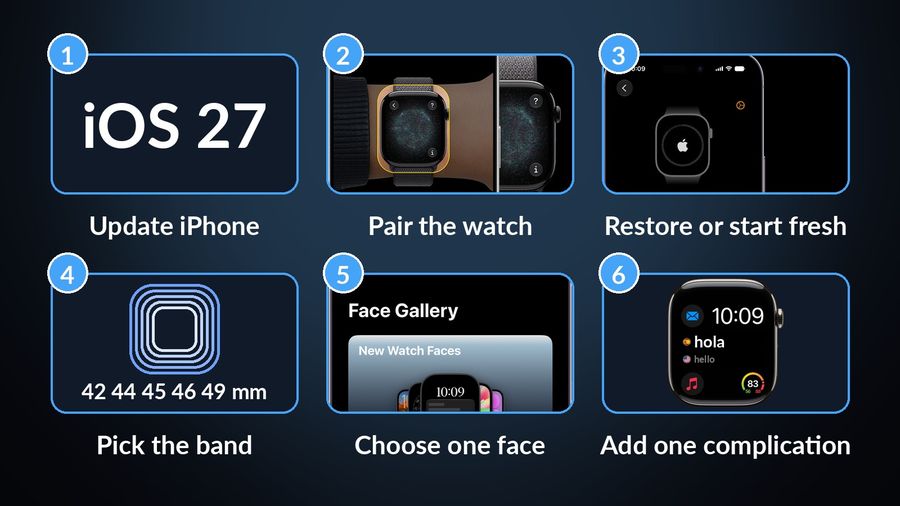
Both models need an iPhone 11 or later with iOS 27 or later, according to Apple's Series 12 page and Ultra 4 page. Apple's pairing guide adds three preparations: update the iPhone to the latest iOS, turn Bluetooth on, and make sure the phone is connected to Wi-Fi or cellular. Put the watch on charge for a few minutes first if it will not turn on. The whole sequence fits on one list.
Pair the watch with your iPhone
Apple's guide describes the same flow for a first watch and for a replacement:
- Put the watch on your wrist and hold the side button until the Apple logo appears.
- Hold the iPhone near the watch and tap Continue when the pairing screen appears. If it does not, open the Apple Watch app and tap Start Pairing.
- Tap Set Up for Myself, then centre the watch face in the viewfinder on your iPhone. If the camera cannot read it, tap Pair Apple Watch Manually.
- Sign in to your Apple Account, create a passcode and set the text size. Keep the two devices close until the watch face appears.
If you see a watch face while pairing, that watch is still paired to an iPhone and must first be erased, as the same guide explains.
Moving from an old watch or a new iPhone
If you have set up another watch with this iPhone, you will see Make This Your New Apple Watch. Tap Customize Settings to restore from a backup of the old watch, or choose Set Up as New Apple Watch. Restoring keeps your settings; starting fresh is cleaner if the old watch had accumulated faces and apps you never used. In both cases the setup article says to keep the devices close while the watch syncs in the background.
If the new device is the iPhone, Apple's guide asks for your Apple Account password, your watch passcode and at least 50 percent charge on both the watch and the new iPhone. Back up the old iPhone first (that also backs up the watch), set up the new one from that backup, and tap Continue when it asks whether to use your Apple Watch. If instead you see Start Pairing, unpair the watch from the old iPhone first.
Change the band
Many people swap the band on day one. Apple's band guide gives the steps: place the watch face down on a clean, soft surface, hold the band release button and slide the band across to free it. To attach a new one, turn it so its text faces you and slide it in until you feel and hear a click. If it does not click, or it slides freely, do not wear the watch.
Check the case size before buying a band. Apple groups them: 42, 44 and 45 mm bands fit each other, 46 mm bands fit 44, 45 and 46 mm cases, and 49 mm bands fit 44, 45 or 46 mm cases (and the reverse). A Link Bracelet must be split in two first. Apple's Ultra 4 announcement lists new Trail Loop, Alpine Loop and Ocean Band colours, but Apple's pages say bands are subject to availability.
Choose a face and set up the first screen
To change the face, touch and hold the display, swipe to the one you want and tap it. You can also open the Apple Watch app on the iPhone, tap Face Gallery, pick a face, add complications and tap Add to Watch, as Apple's face guide describes. During setup the watch also offers optional extras, such as cellular, gestures, Apple Pay and, on Ultra, the Action button, according to the setup article. None of them is urgent: do the face and one or two complications first and live with the watch for a day before adding more.
Apple's Ultra 4 announcement says watchOS 27 brings Smart Stack widget suggestions and a one-handed tap gesture to open Smart Stack widgets. Treat those as a second step: first decide what belongs on the face itself, and then see what the Smart Stack suggests.
What Apple says is new on these models
Apple announced both watches on September 9, 2026, with availability from September 18. The pages we read say the following, and nothing more:
- Both run on the S11 chip, which Apple calls its most powerful wearable chip (Apple Newsroom).
- A new Health Sensing System with new optical and electrical heart sensors, plus a daily 0-10 readiness score (Apple Newsroom).
- Some features are not available yet. Apple's pages mark the redesigned Health app as coming later this year, and Siri Recap and Live Rewind as coming in beta later this year, with an Apple Intelligence-enabled iPhone required for the last two (apple.com). Do not look for them in your first week.
Add a vocabulary complication
A complication is a small piece of information on the watch face, the one screen you look at all day. Putting one word there adds a few seconds of vocabulary to a screen you already check. The longer case for this is in our guide to learning a language on an Apple Watch, and a comparison of the apps that do it helps if you are still choosing.
The steps, after installing the Watch Your Language watch app from your iPhone, are Apple's own: with the face showing, touch and hold the display, tap Edit, swipe left all the way to the end, tap a complication slot, turn the Digital Crown to choose the app, and press the Digital Crown to save, per Apple's complication guide. Then tap the face to switch to it.
- Face: Extra Large works best because the word gets the most room. Modular also works well. A face with too little space may need a tap on the complication to show a long word in full.
- Timing: you choose how often the word changes, from every minute to once a week. Start with the default and adjust after a few days.
- First screen: on a fresh watch the complication can show a welcome message before words appear. That is its normal empty state, not a fault.
- Progress: you mark a word as learned yourself, so nothing is decided for you.
The same words can also sit on your iPhone, as described in our Lock Screen widgets guide.
A first-day checklist
Follow the list above, and stop after one face and one complication. A watch gets better as you notice what you want from it, and the face is the easiest thing to change later.
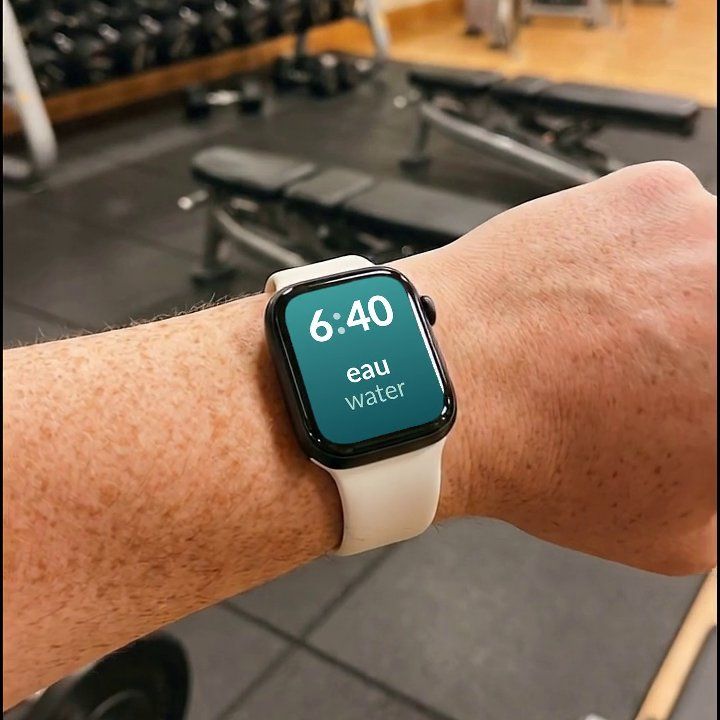

Watch Your Language adds a vocabulary word to your new watch face in a complication, from 25+ languages and 10,000+ words, changing as often as you choose. It is a calm way to make the first week with a new watch count for something.