 Paul L.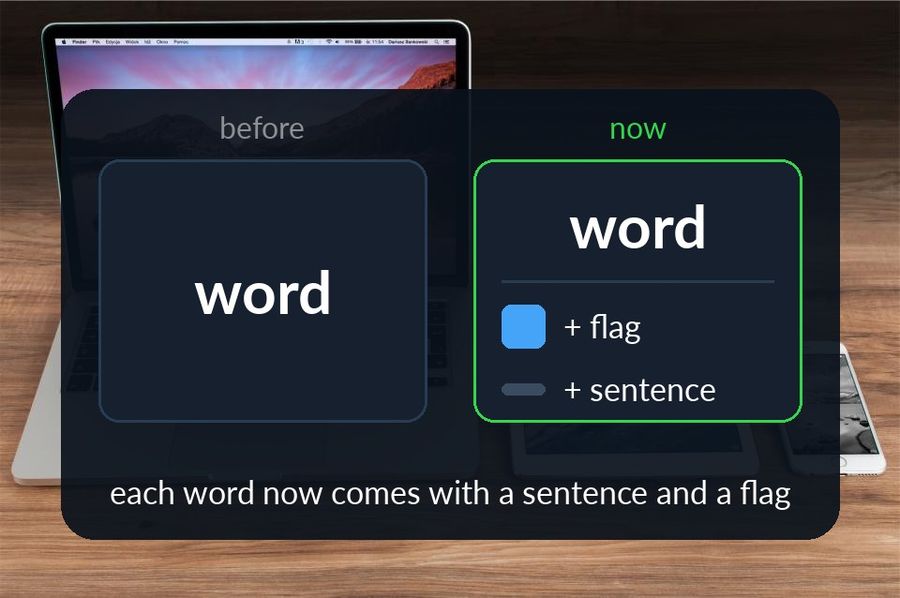
Watch Your Language has picked up a run of updates aimed at one thing: making the glance itself more useful, whether that glance lands on your iPhone Lock Screen, a Home Screen widget, or your Apple Watch face. None of it changes what the app is for — it is still a passive-vocabulary tool, not a lesson app — but each change makes the few seconds you already spend looking at a word count for a little more. Here is what changed, in plain terms, and what it means for how you actually use the app.
Key takeaways
- Larger Home Screen widgets now show an example sentence under each word, with a small flag marking each line's language.
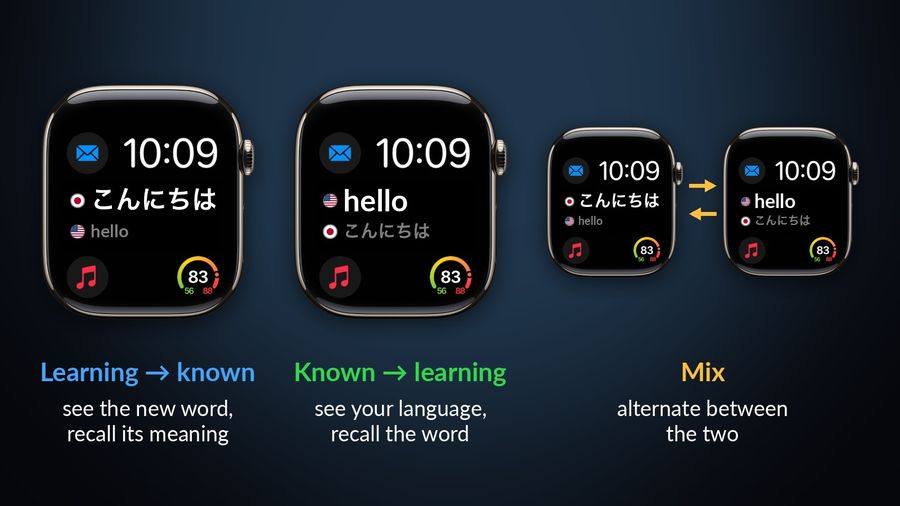
- When you add a watch complication you can choose the direction: learning language first, your own language first, or alternating.
- Widgets for non-Latin scripts like Japanese, Korean or Chinese have a tap-to-toggle between native script and Latin spelling.
Words come with more context now
On the larger Home Screen widget sizes, each word now arrives together with a short example sentence that uses it, rather than the bare word pair on its own. Seeing a word inside a sentence gives you more to hold onto than the word alone, especially once you already recognise it and are trying to notice how it actually gets used.
A small flag now sits beside each sentence line too, marking which language that line is in. It is a small addition, but useful at a glance when a widget is showing your own language and the one you are studying side by side, and you want to know which sentence to actually read first.
This applies to the larger widget sizes, where there is room for a sentence underneath the word; the smallest widget still shows the word on its own, since there is nowhere to put a second line.
The watch face adapts to how you want to practice
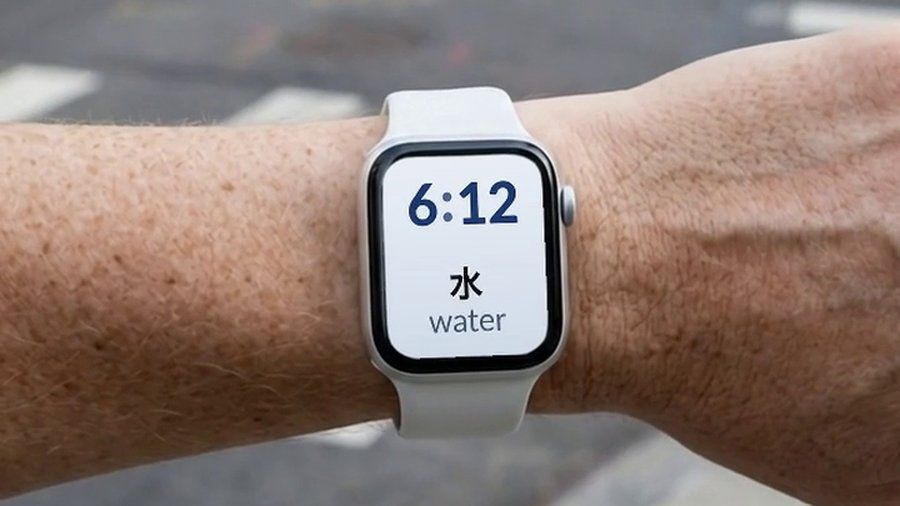
Watch Your Language offers two complications for your Apple Watch face, "Words & Translations" and "Words Only". Adding one now lets you choose which direction you want to practice in: see the word in the language you are learning first and recall what it means, see your own language first and recall the word, or let the complication alternate between the two. Before, the direction was fixed; now it is a setting you pick when you add the complication.
The names and options in that complication picker are also shown in your own language now, rather than only in English. If you have not set up complications yet, our Apple Watch setup guide walks through adding them to a face.
Which direction is worth picking depends on where you are with a language. Recalling the word from its meaning is the harder direction, so it is the more useful one once a word is already somewhat familiar; recognising a word when you see it is the easier, earlier skill, so it is the better place to start with words that are brand new to you. Letting the complication mix both is a reasonable default if you would rather not think about it.
Non-Latin scripts, your way
Widgets showing a language written in a non-Latin script — Japanese, Korean or Chinese, for instance — now carry a small toggle you can tap right on the widget, switching between the native script and its Latin-letter spelling without opening the app. Languages that already use the Latin alphabet, such as French or Spanish, simply do not show the toggle, since there is nothing to switch. The transliterations behind it were also cleaned up where they had drifted, so the romanised spelling should now match what you would actually see written out.
See what your widgets can look like
There is a new screen in the app's settings that shows examples of what your widgets and watch face can look like — several colour tints, both widget sizes, a couple of word-order layouts — followed by short instructions for changing a widget's colour or turning the mascot on or off, using your iPhone's own widget customisation options: long-press the Home Screen, tap the widget, and choose from there.
A few smaller fixes worth knowing
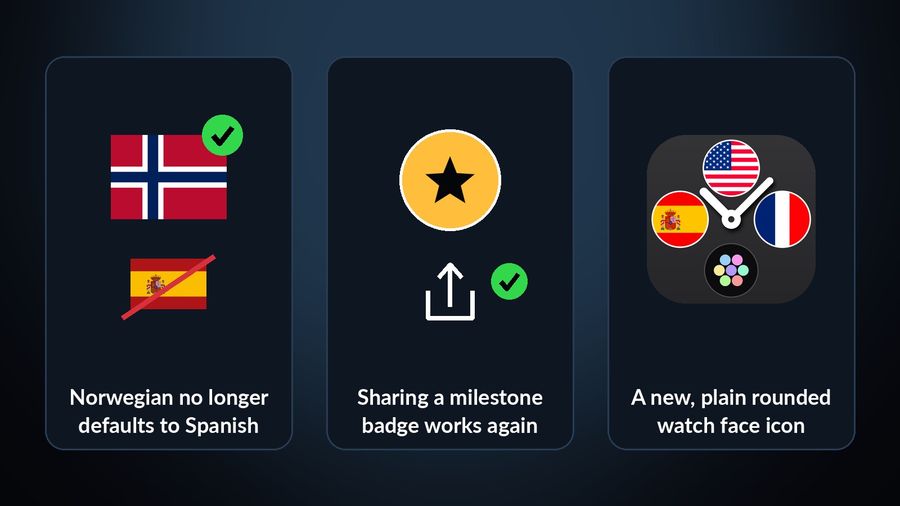
- If your iPhone's system language was set to Norwegian, the app used to default your first language to Spanish instead. That mix-up is corrected.
- Sharing a milestone badge from the app, which had stopped working correctly, now works as expected.
- The app's icon — on both your iPhone and your Watch — was redrawn as a plain, rounded watch face.
Getting the most out of it
A couple of unrelated details still make the biggest difference to how well any of this actually shows up. On the watch face, "Extra Large" gives a complication the most room to show a full word and its sentence; "Modular" works well too. On a face with less space, you may need to tap the complication once to see the whole word. On the iPhone or iPad, widgets are added by long-pressing an empty spot on the Home Screen or the Lock Screen and choosing to add a widget from there.
Apple, not the app, decides how often a widget actually refreshes, to save battery — you can raise that rate in the app's own settings if a widget feels slow to update. And if you do not have an Apple Watch, none of the watch-face changes apply to you, but everything above about widgets still does: the iPhone and iPad widgets work on their own.
What this means for you
None of this asks anything of you beyond having the current version of the app installed. If you already use Watch Your Language, you will simply start seeing sentences and flags on your widgets, a direction choice on your watch face complications, and a script toggle if you are learning a language such as Japanese or Korean. If you have not tried it yet, these are the details a passive-vocabulary tool lives or dies on: not a new headline feature, but the everyday glance getting a little more useful.
Watch Your Language is still, deliberately, a narrow tool. It schedules which word to show you next out of the ones you keep forgetting, and it does not teach grammar or run speaking lessons — pair it with something that does, and let it handle the vocabulary in the background.
Watch Your Language puts vocabulary from its 10,000+ words on your iPhone Lock Screen and Home Screen and on your Apple Watch face, and decides which word to bring back next based on the ones you keep forgetting. These updates are already part of what you see if you use it; if you do not yet, it is free to start with the pre-made word packs.