 Paul L.
A page of vocabulary copied down in class is one of the most useful lists a learner ever writes, and one of the least likely to be looked at again. Watch Your Language can read that page with your iPhone's camera, work out which part of each line is the word and which is the translation, and add the pairs you confirm to the same review schedule as the rest of your vocabulary — so the fifteen minutes spent copying words off a whiteboard are not wasted the moment the notebook closes.
Key takeaways
- Scan a handwritten vocabulary page with Scan with AI (Take a Picture or Choose from Gallery) and the words join your normal schedule.
- Nothing is added automatically: review the found pairs, untick misreads, then tap Add. Already-added words are left out.
- Scan better with one word-and-translation pair per line, large writing, even flat light and one page at a time. Scanning is a Premium feature.
Why class vocabulary lists go unreviewed
Copying a word down in a notebook is the easy half of learning it. The notebook itself does nothing to bring the word back later: it sits closed in a bag until the next class, and by exam time it is a stack of pages nobody has reopened since they were written. Retyping the list into a phone afterward is the obvious fix, and also exactly the kind of small, tedious task that a student juggling five other subjects skips — one more app to open, one more list to type out by hand, easy to put off until it never happens.
Students are a large part of who ends up with this problem, simply because so much of a student's vocabulary starts life on paper: a teacher's board work, a handout, a margin note during a reading. None of that arrives as a file you could import directly.
Not every list starts as handwriting, though. If your vocabulary already exists as a typed document or a spreadsheet from a teacher or a course, retyping it is unnecessary work twice over — see importing a vocabulary list from a spreadsheet for that route. The camera is for the list that only exists on paper.
How to write notes that scan well
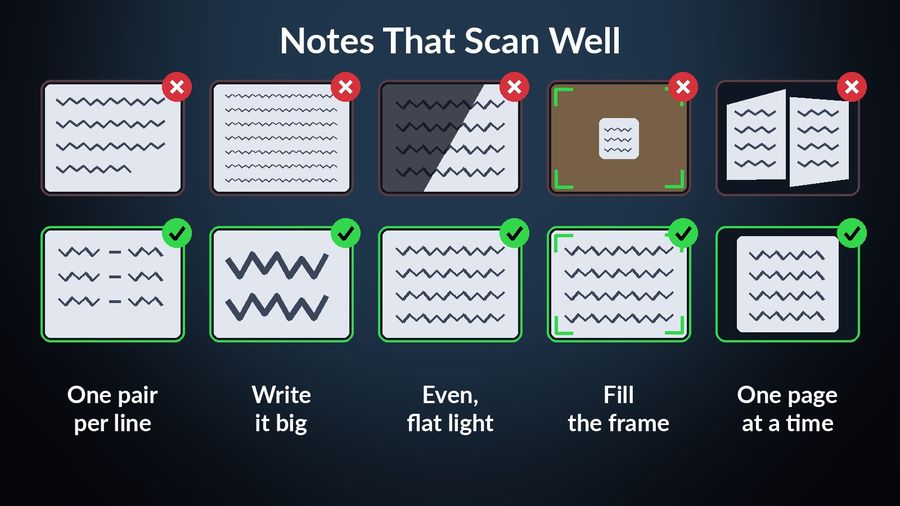
The camera is reading your handwriting, not grading it, but a few habits make the scan more reliable:
- Keep each pair on its own line. A word and its translation together, one pair per line, is easier to separate than a paragraph of running notes.
- Write at a size you could read from across the desk. Cramped margin notes are the hardest source material for any text recognition.
- Even, flat light. A shadow falling across half the page or a glare off glossy paper hides exactly the strokes that matter.
- Fill the frame with the page. Get close enough that the words are large in the photo, rather than photographing the whole desk.
- One page at a time. A single page of notes gives the scan a clean, well-lit subject; a spread of two curling pages does not.
How the scan works in Watch Your Language
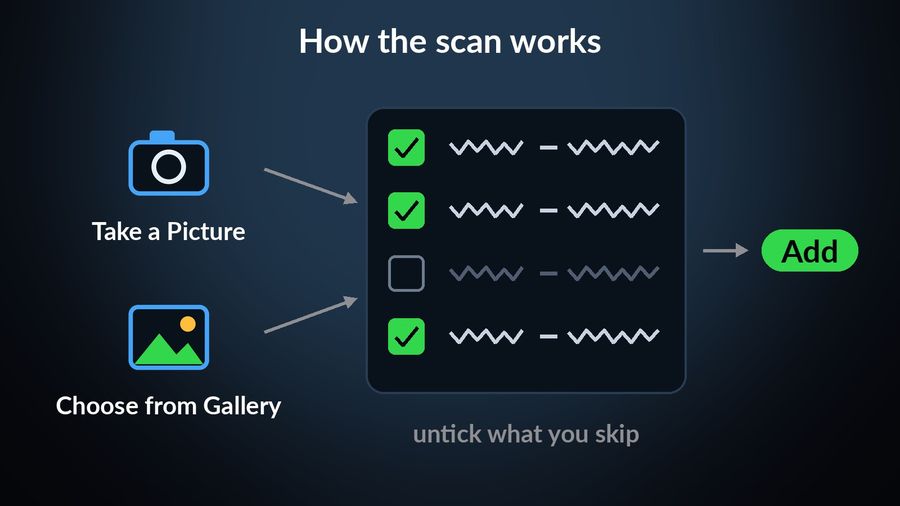
Inside the app, Scan with AI offers two ways in: Take a Picture with the camera, right there at your desk, or Choose from Gallery if you already photographed the page earlier, in class or on a train. Either way, the app sends the image off to be read and comes back with a list of words paired with their translations — it reads the handwriting itself rather than expecting typed text. For a language with a non-Latin script, the result can carry a transliteration alongside the word, the same feature the rest of the app uses.
Nothing is added automatically. The next screen shows how many words it found and lists every pair with a checkbox next to it, ticked by default; anything the scan misread or that you would rather skip, you untick before tapping Add. Words you have already added under the same spelling and translation are left out of that list on their own, so confirming does not mean re-adding what is already in your rotation.
Scanning notes is part of adding your own words to the app, which — like typing words in by hand or importing a file — is a Premium feature. The free tier works with Watch Your Language's pre-made vocabulary packs; a Premium subscription is what unlocks custom words, including the ones that started life on a page.
What happens after the words are added
Once a scanned word is in the app, the notebook it came from stops mattering. It is scheduled the same way as every other word: shown less often once you clearly know it, brought back sooner when you do not. The mechanics of that scheduling — and why it beats a flashcard deck you have to remember to open — are covered in spaced repetition, explained. In practice it means the word turns up on your iPhone's Lock Screen or Home Screen widget and on your Apple Watch face, at a pace you set yourself, anywhere from every minute to once a week.
That is the actual payoff of scanning the page: not a tidier notebook, but a class vocabulary list that keeps coming back to you long after the class has moved on to the next unit, without a second sitting-down session to make it happen. The notebook did its job the moment the word went on the page; everything after that is the app's job.
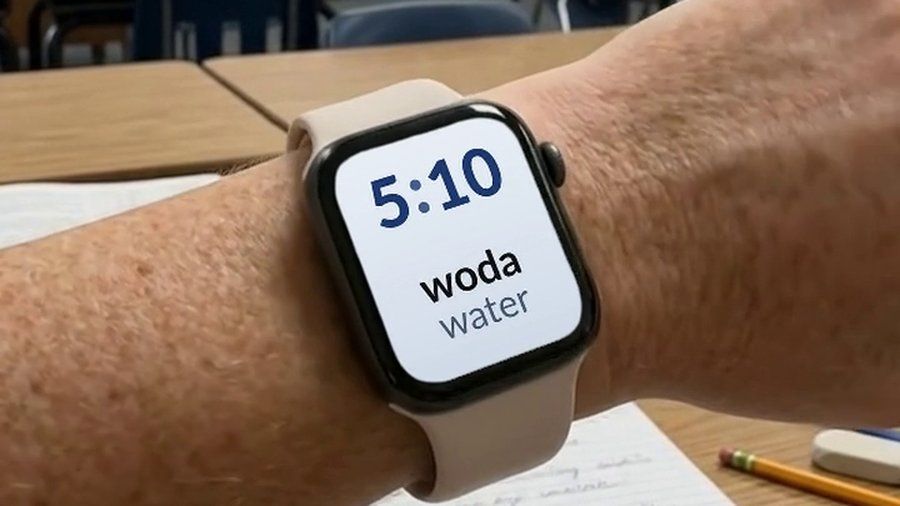

Watch Your Language is built for exactly this handoff. Scan a page of class notes with the camera, confirm the words it found, and they join your existing vocabulary on the Lock Screen, Home Screen and Apple Watch face, reviewed on the schedule the app keeps for you rather than one you have to remember to run yourself.